目录 Table of Contents
- 01. 权限配置 / Permission Configuration
- 02. 前台收银 / Front Desk Cashier
- 03. 点单 / Order Dishes
- 04. 预定 / Reservation
- 05. 账单 / Bill
- 06. 其他 / Other
- 07. 后台管理 / Backend Management
- 08. 平板点餐 / Tablet Ordering
权限配置
Permission Configuration
(一)、配置(configuration)
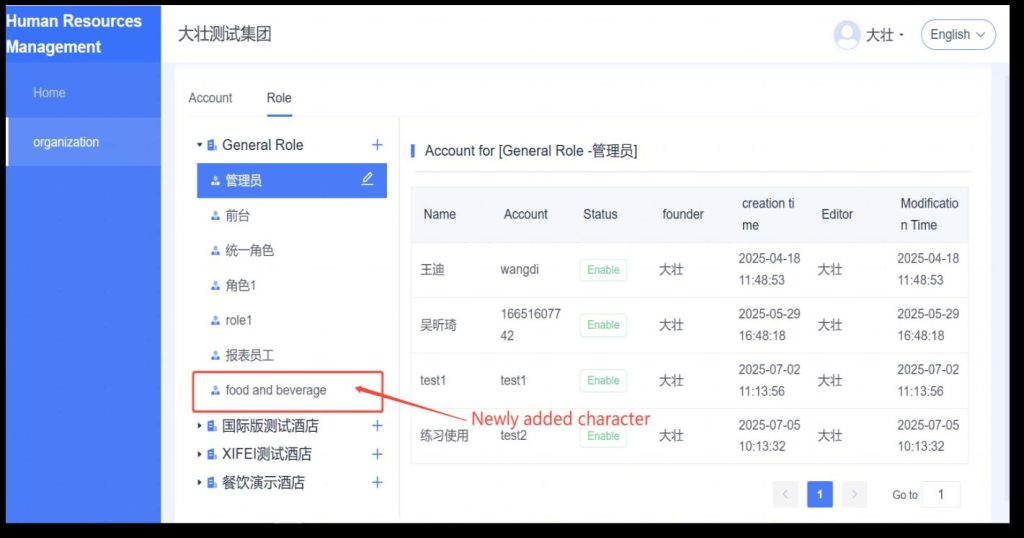
根据实施技术给到的管理员账号,登录HRMS人事系统,给员工先创建角色。
Using the administrator account provided by the implementation technology team, log in to
the HRMS personnel system and first create a role for the employee.
(一)、配置(configuration)
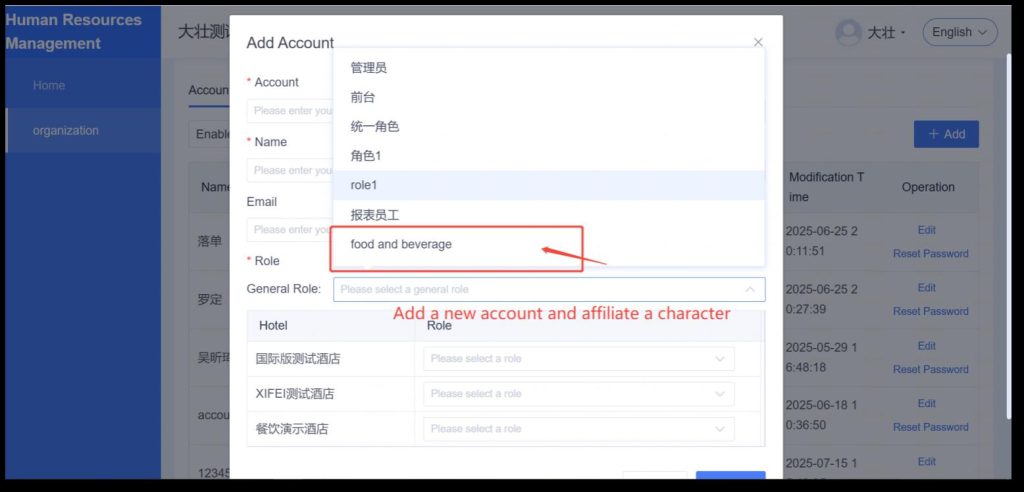
角色创建完成后,再去创建账号关联角色。
After the role is created, proceed to create an account and associate it with the role.
前台收银
Front Desk Cashier
(一)、登录/退出登录(Log in / Log out)
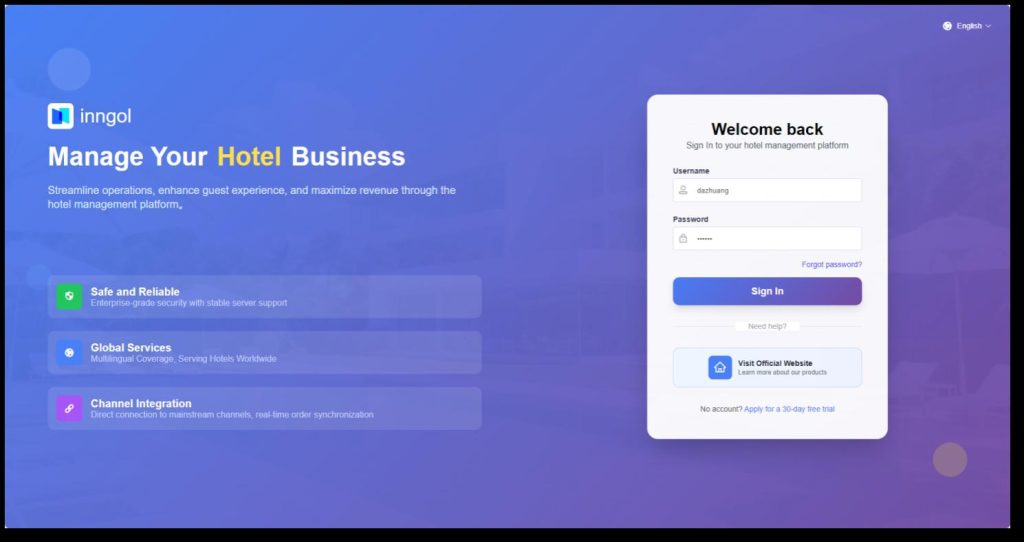
输入网址:https://sso.inngol.com/login,根据配置好的账号密码,登录此网址
Enter the URL: https://sso.inngol.com/login, and log in to this website using the configured account and password.
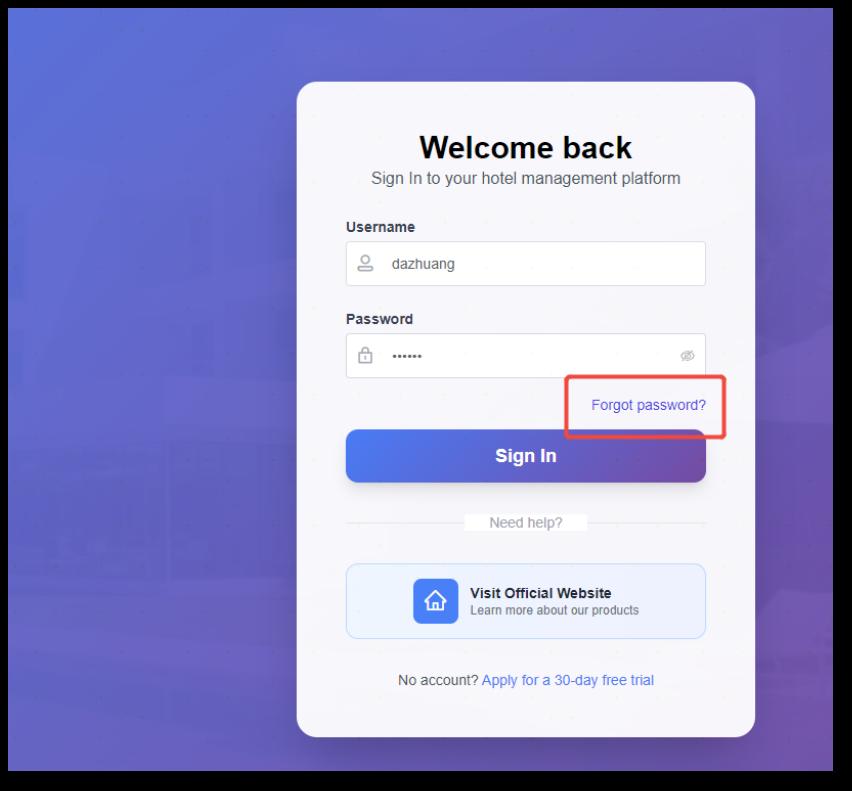
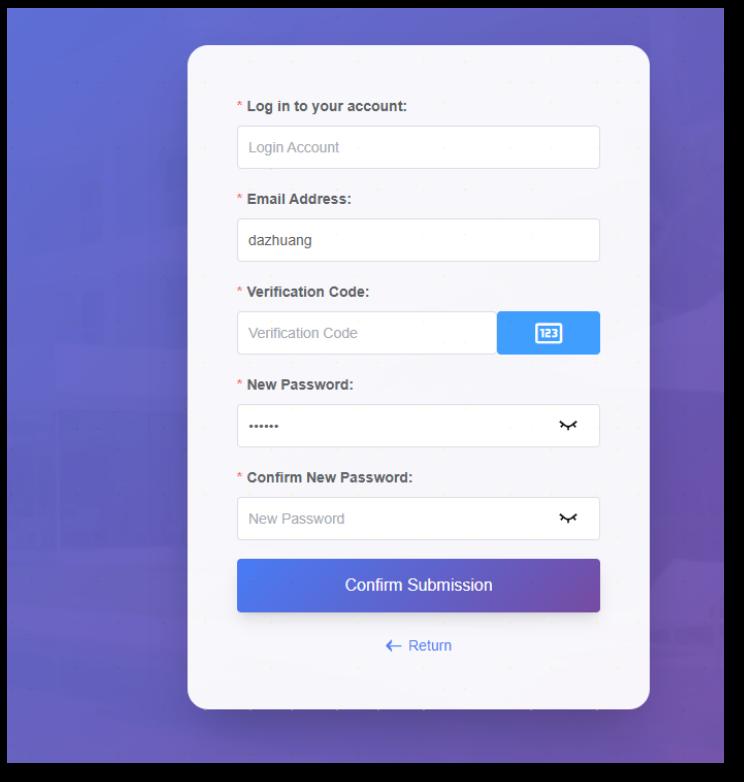
若忘记密码的则可以通过,邮箱号发送验证更改新密码。
If you forget your password, you can send a verification code via your email to change it to a new one.
(一)、登录/退出登录(Log in / Log out)
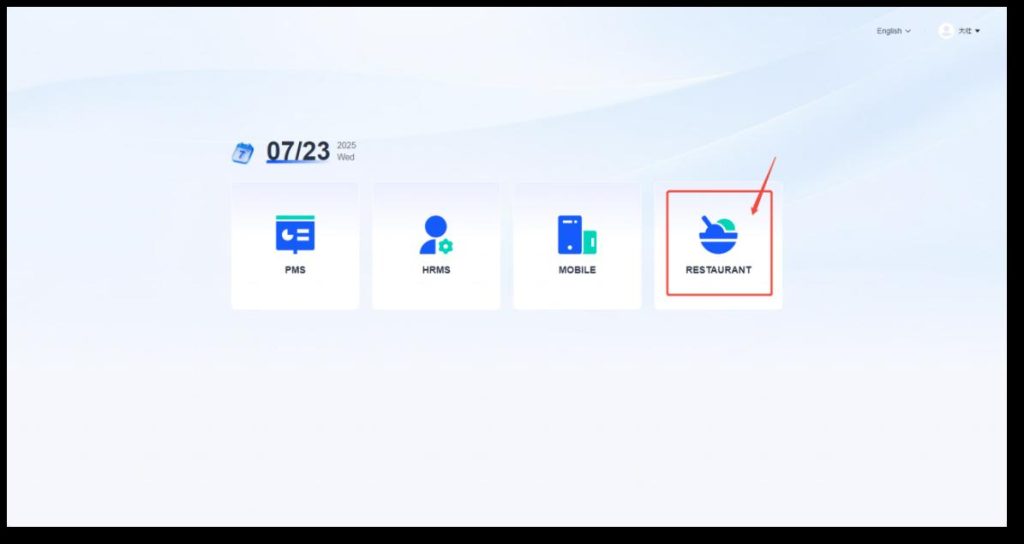
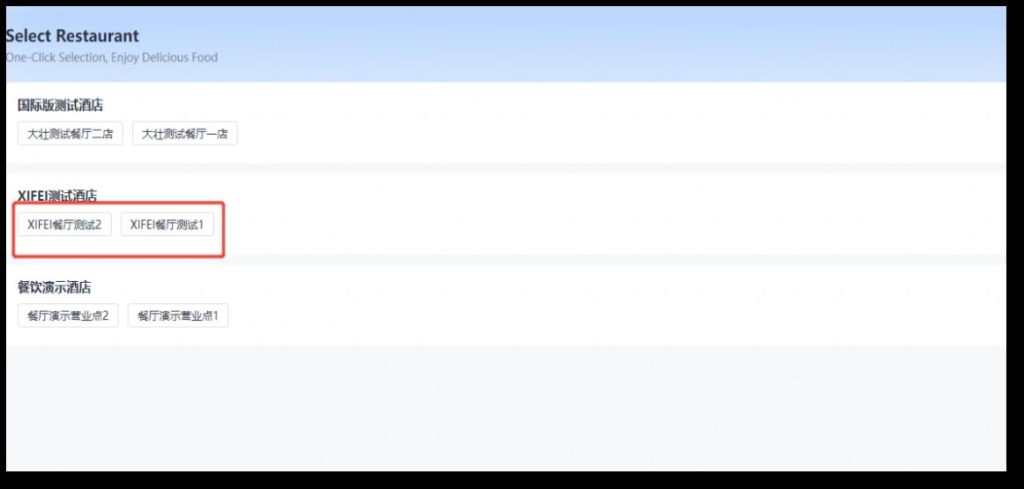
选择餐饮系统,选择餐厅。
Select the catering system and choose the restaurant.
(一)、登录/退出登录(Log in / Log out)
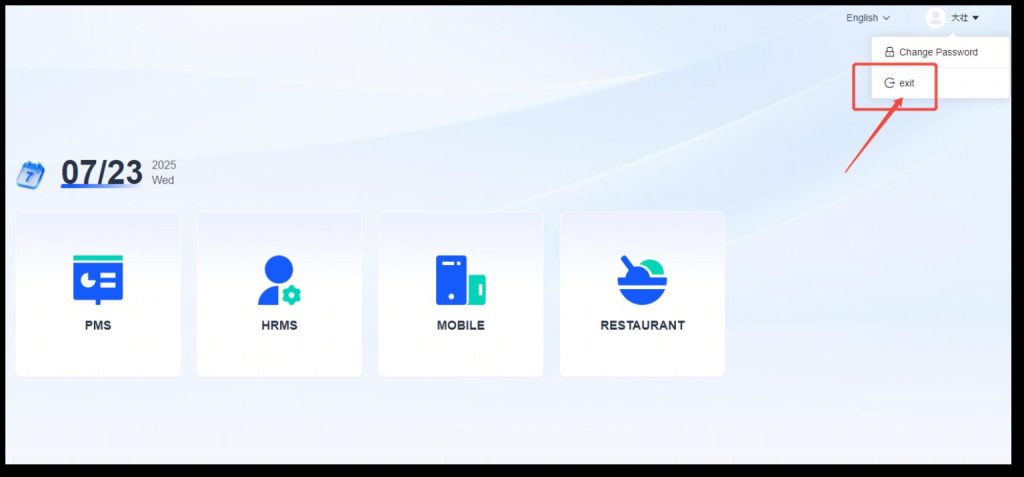
退出登录右上角,可以在平台页面点击退出。
To log out, click the logout button in the upper right corner, which can be done on the platform page.
(一)、登录/退出登录(Log in / Log out)
(二)、切换餐厅(Switch restaurants)
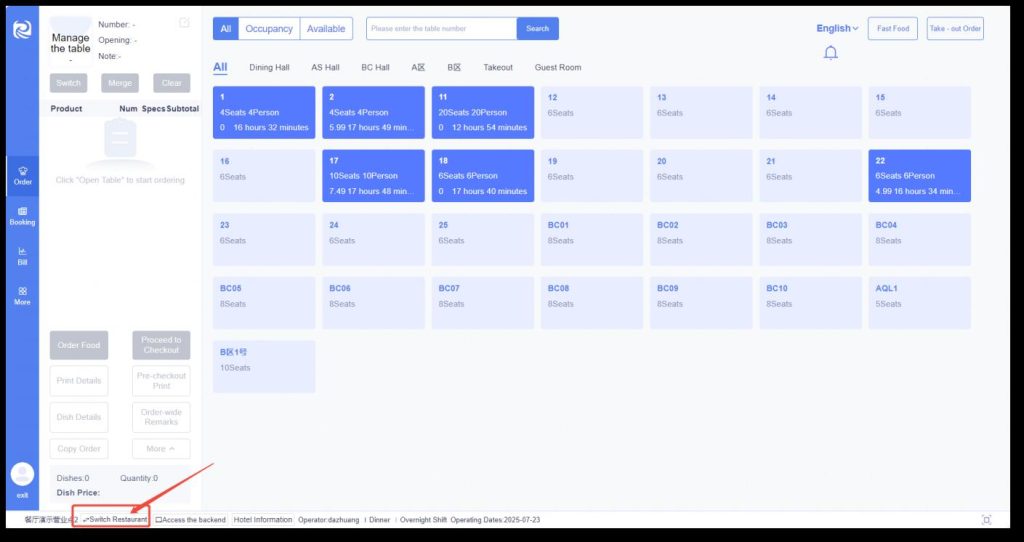
前台左下角,有个切换餐厅的按钮,点击后,跳转到切换餐厅的选择页面。适用于多个营业点的经营酒店。
In the lower left corner of the front desk, there is a button for switching restaurants. Clicking it will jump to the selection page for
switching restaurants. This is applicable to hotels that operate multiple restaurants.
点单
Order Dishes
(一)、桌台区域(Table area)
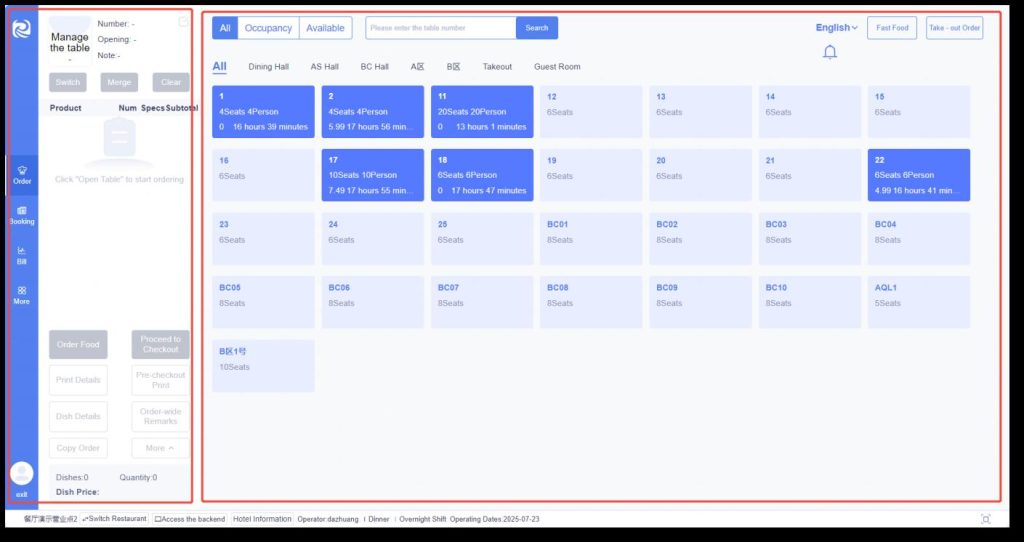
点单模块主要分为两个区域,右侧桌台展示区,左侧开台订单操作区。
The ordering module is mainly divided into two areas: the table display area on the right and the table opening & order operation
area on the left.
(二)、开台(Open a table)
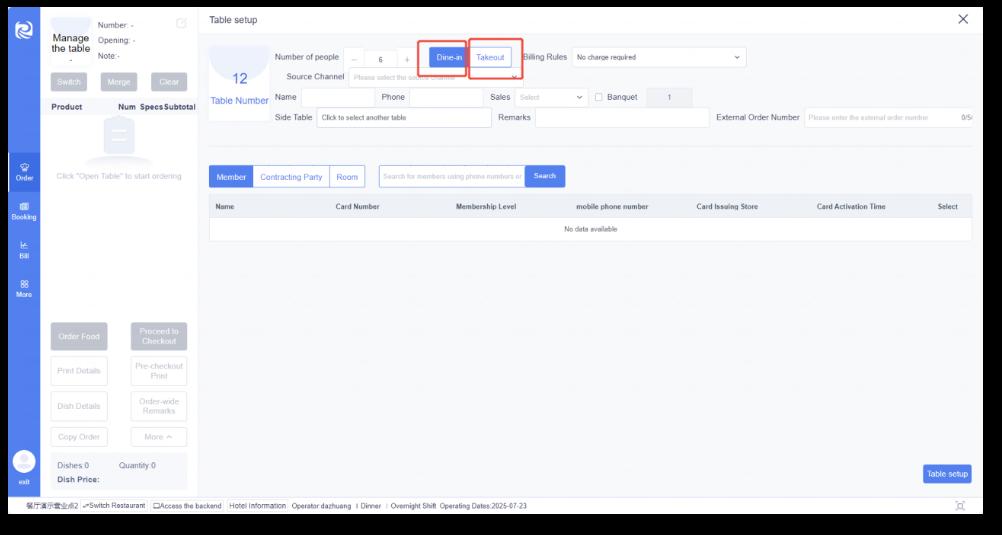
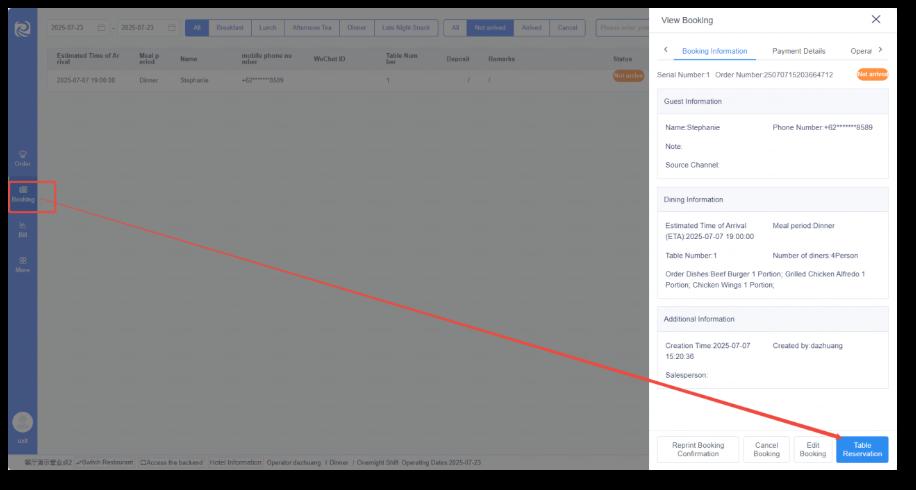
含堂食开台、外带开台、平板电脑开台、预订开台 4 种开台场景。
There are 4 table opening scenarios: dine-in table opening, takeaway table opening, tablet-based table opening, and reservation
table opening.
(二)、开台(Open a table)
Ø
堂食开台(Dine-in):
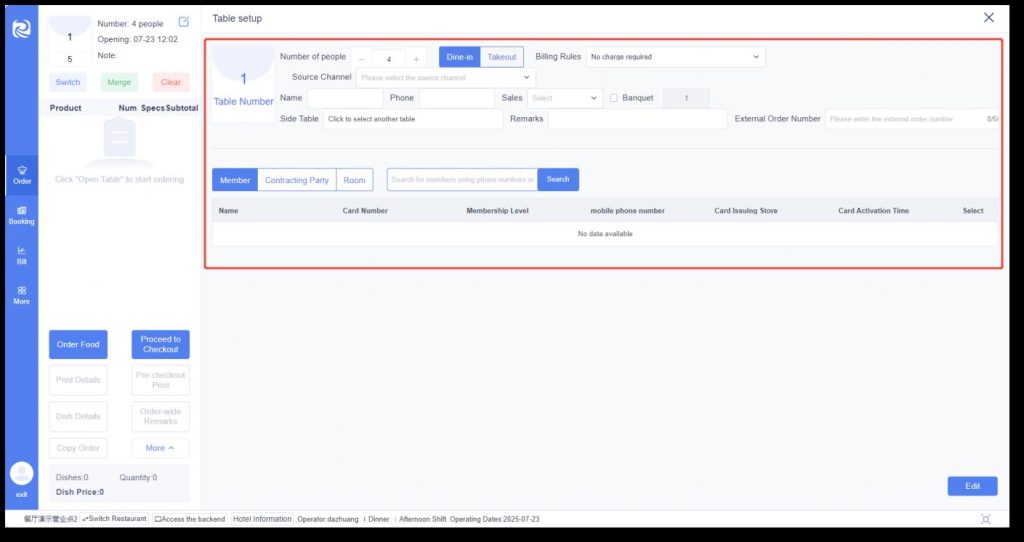
点击空闲的桌台,进入开台页面后默认选中堂食。
Click on a free table, and after entering the table opening page, “dine-in” will be selected by default.
(二)、开台(Open a table)
- 人数:人数默认显示桌台在后台新增时填写的席位数(默认人数设置路径:后台
管理–餐厅设置–桌台管理–新增/编辑桌台–席位数),可进行调整人数(0<人
数<9999)。
- 计费规则:非必选,可下拉选择该桌台的计费方式。
- 来源渠道:用于区分客人的来源,比如:美团、携程等,餐厅后台的收银报表->
收银明细报表,可体现来源渠道的统计。
- 姓名:非必填,客人姓名。
- 电话:非必填,客人电话。
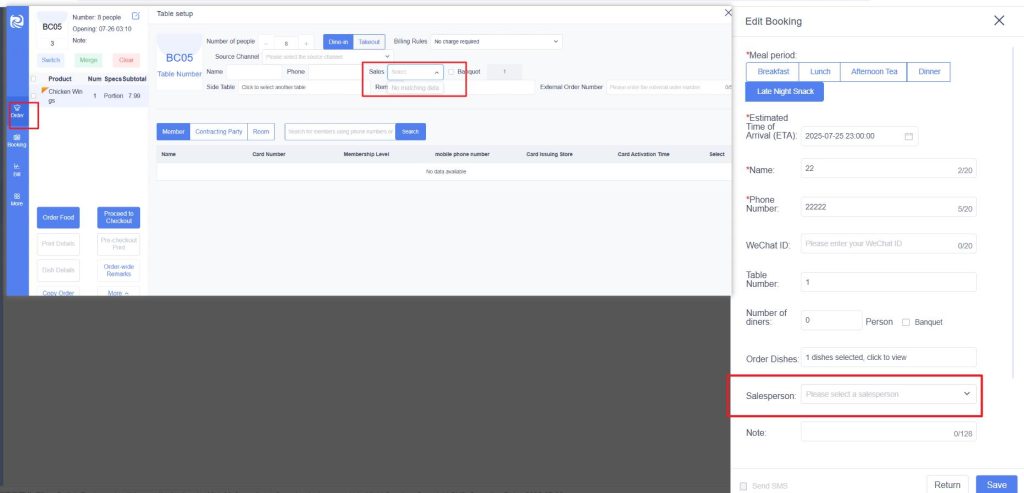
- 销售:非必选,显示住哲 PMS 中的销售员(销售员设置路径:住哲PMS–客户
关系–协议单位–销售员管理),用于销售员业绩报表数据统计。
- 宴席:非必填,宴席桌数定义,桌数影响首次点菜时,菜品默认数量(如宴席5
桌,点菜时,辣椒炒肉默认 5 份起),用于订单结账明细报表标识是否宴席订单。
- 辅桌:非必填,同一客人,同一批次同时开多个桌台【外带不支持联台业务】;
同一批联台客人,桌台盘显示“联 A/B…”标识,便于快速识别关联桌台。
- 备注:非必填,订单备注。
- 低消提示:当该桌台设置最低消费,并设置“开台时提醒”时,将展示最低消费
提醒。
- Number of people: The number of people displayed by default is the seating
capacity filled in when the table was added in the backend (Default number setting
path: Backend Management — Restaurant Settings — Table Management —
Add/Edit Table — Seating Capacity). The number of people can be adjusted (0 <
number of people < 9999).
- Billing rules: Not mandatory; you can select the billing method for the table from
the drop-down menu.
- Source channel: Used to distinguish the source of customers, such as Meituan,
Ctrip, etc. The statistics of source channels can be reflected in the cash register
details report under the cash register reports in the restaurant backend.
- Name: Not mandatory; the customer’s name.
- Phone number: Not mandatory; the customer’s phone number.
- Salesperson: Not mandatory; displays the salesperson from Zhuzhe PMS
(Salesperson setting path: Zhuzhe PMS — Customer Relationship — Agreement Units
— Salesperson Management), and is used for data statistics in the salesperson
performance report.
- Banquet: Not mandatory; defines the number of tables for the banquet. The
number of tables affects the default quantity of dishes when ordering for the first
time (for example, if there are 5 banquet tables, the default quantity of stir-fried
pork with chili will start from 5 portions). It is used to identify whether an order is a
banquet order in the order checkout details report.
- Auxiliary table: Not mandatory; for the same customer, multiple tables can be
opened at the same time in the same batch [takeaway does not support table
linking business]; for the same batch of linked tables, the table panel will display the
“Linked A/B…” mark to facilitate quick identification of associated tables.
- Remarks: Not mandatory; order remarks.
- Minimum consumption reminder: When the table is set with a minimum
consumption and “Remind when opening the table” is enabled, the minimum
consumption reminder will be displayed.
堂食开台填写说明(Instructions for Filling in Dine-in Table Opening):
(二)、开台(Open a table)
Ø
外带开台(Takeaway):
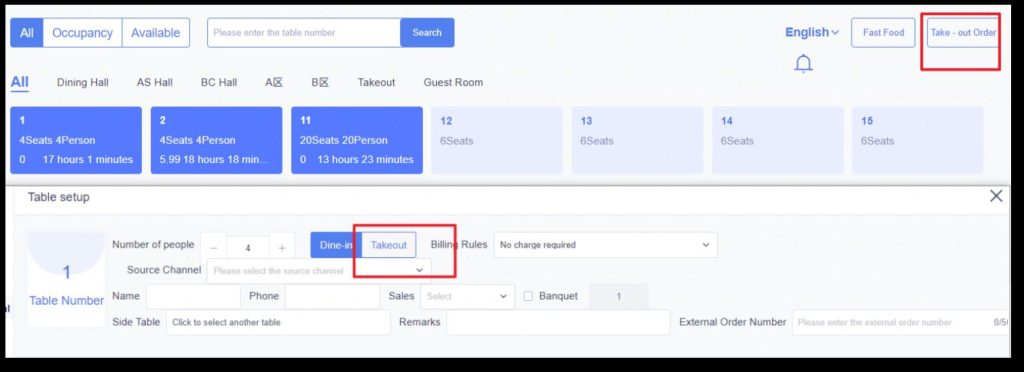
外带开台有两个入口,一个是在堂食开台页面可切换至外带;另一个是点击外带点餐即可进入外带开台页面,进入开台页面后默认选中外带。
There are two entry points for takeaway table opening. One is that you can switch to takeaway on the dine-in table opening page; the other
is that you can enter the takeaway table opening page by clicking “Takeaway Ordering”, and “Takeaway” will be selected by default after
entering the table opening page.
(二)、开台(Open a table)
外带开台填写说明(Takeaway Operation Instructions):
- 外带开台与堂食开台的步骤一致,可查看堂食开台说明。
- 外带开台后生成一个虚台,不论是散客、会员、协议单位、房间开台,
列表只显示外带号与消费金额。
- The steps for takeaway table opening are the same as those for dine-in
table opening; please refer to the dine-in table opening instructions.
- After a takeaway table is opened, a virtual table is generated. Whether it is
for walk-in customers, members, contracted units, or room-based table
openings, the list will only display the takeaway number and the consumption
amount.
(三)、点菜(Order dishes)
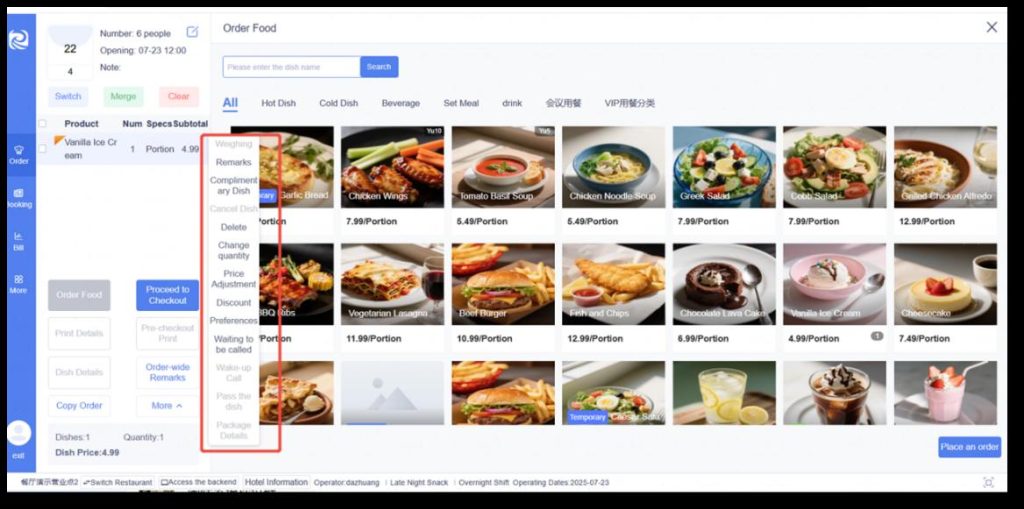
未下单菜品操作:称重、备注、赠菜、删除、改量、改价、
打折、偏好、等叫;
Operations for unordered dishes: Weighing,
Remarking, Complimentary Dishes, Deletion, Quantity
Adjustment, Price Adjustment, Discounting, Preference
Setting, and Waiting for Order Confirmation;
已下单菜品操作:称重、赠菜、退菜、改价、打折、叫起、
转菜;
Operations for ordered dishes: Weighing,
Complimentary Dishes, Returning Dishes, Price
Adjustment, Discounting, Order Activation, and Dish
Transfer;
注:堂食与外带点餐,开台后所有的操作都一致。
Note: For both dine-in and takeout orders, all
operations are consistent after a table is opened.
(三)、点菜(Order dishes)
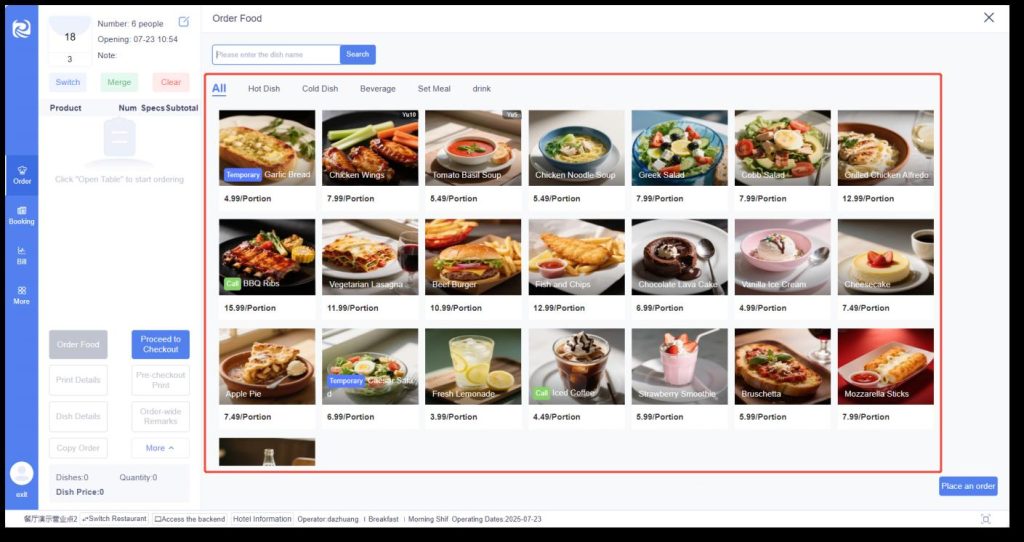
若需要需要菜品图片展示,可在后台系统设置,结账设置,前台营业中开启“收银端菜品图片展示”。
If you need to display dish images, you can enable “Dish Image Display on Cashier Terminal” in the backend system settings,
checkout settings, and front desk operations.
(三)、点菜(Order dishes)
Ø
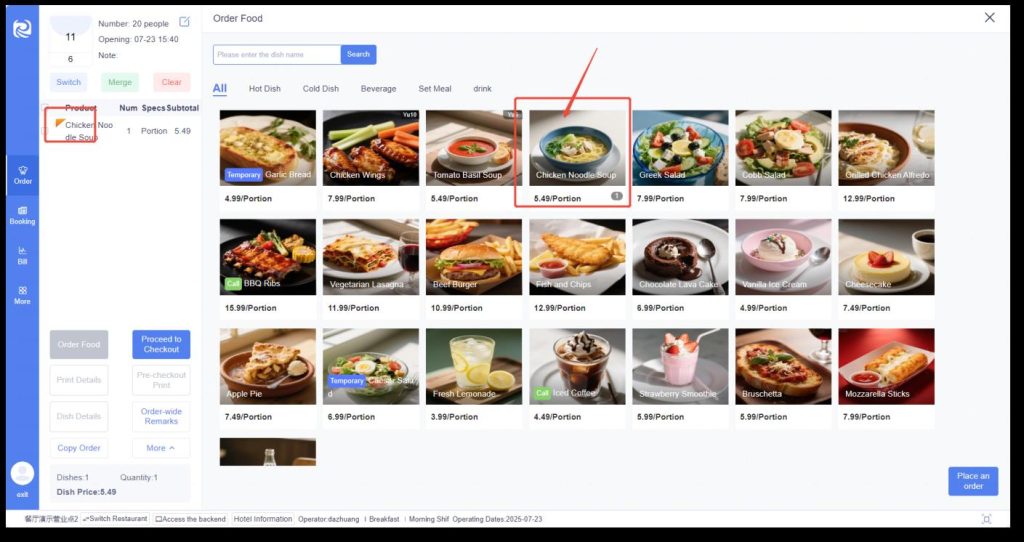
普通菜(Regular dish):
单击菜品 1 次即点菜 1 份,左侧显示已点菜品(黄色倒三角图标指未下单)。
Click a dish once to order one portion. The ordered dishes are displayed on the left (the yellow inverted triangle icon
indicates that the order has not been placed).
(三)、点菜(Order dishes)
Ø
套餐菜(Set meal dishes):
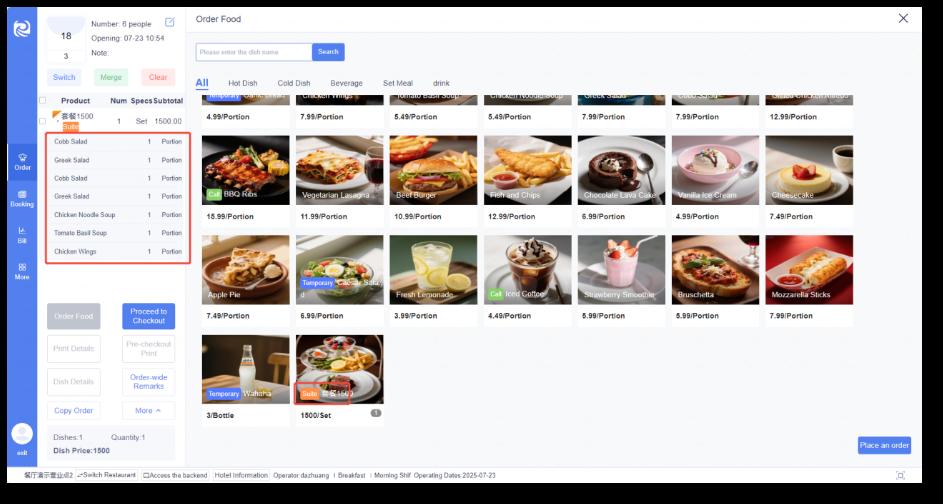
固定套餐菜(Fixed set menu dishes):
- 固定菜品概念:该套餐里菜品和菜品份数固定。
Fixed dishes concept: The dishes and the number of servings in this set
meal are fixed.
- 右边菜品区域显示“套”;单击套餐1 次即点菜1 份,左侧已点菜品显示
“套”。
The dish area on the right displays “set”; clicking the set meal once
means ordering one serving, and the ordered dishes on the left display
“set”.
- 点击已点的套餐菜品,显示套餐下的菜品明细(套餐菜设置路径:后台管理-
-菜谱管理–菜品管理–新增/编辑套餐菜)。
Click on the ordered set meal dishes to display the detailed dishes under
the set meal (path for setting set meal dishes: Backend Management —
Menu Management — Dish Management — Add/Edit Set Meal Dishes).
(三)、点菜(Order dishes)
Ø
套餐菜(Set meal dishes):
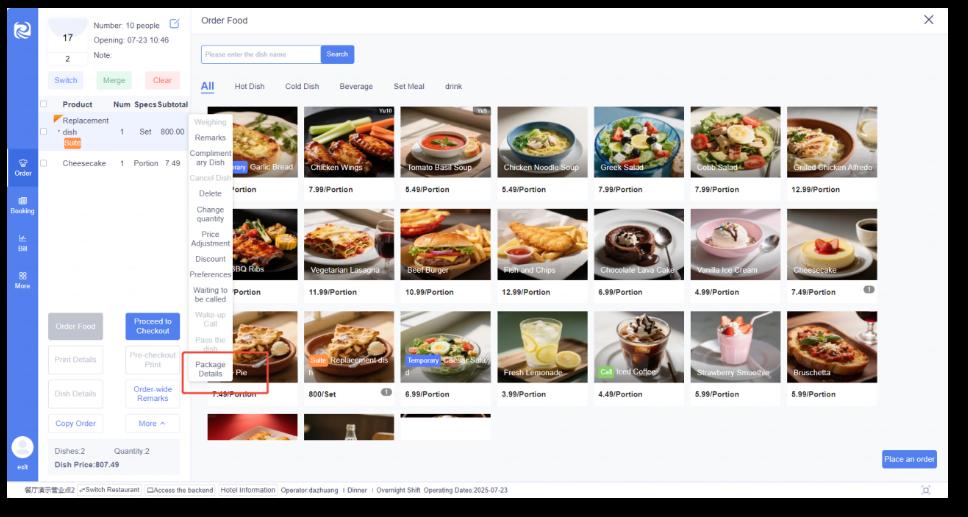
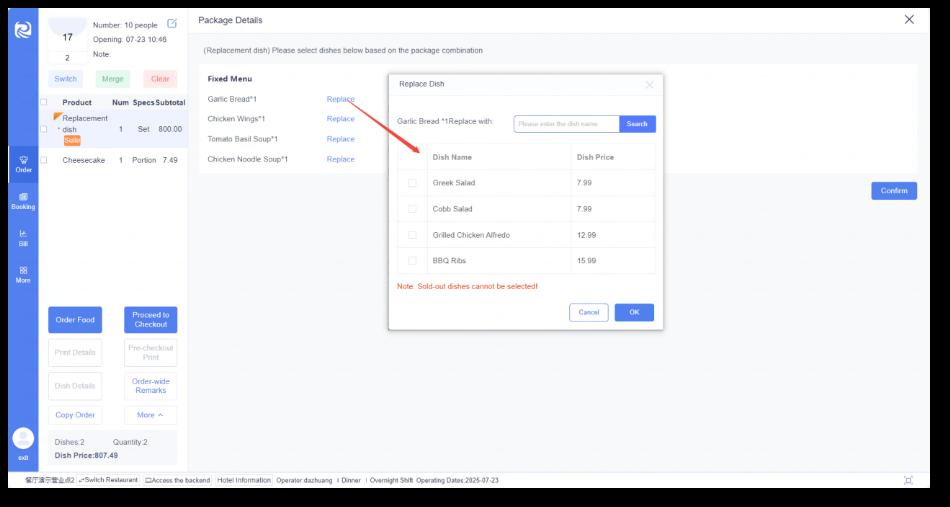
固定套餐菜替换菜(Replacement of dishes in
fixed set meals.)
- 单击套餐名称,点击“套餐明细”。
Click on the set meal name and then click “Set
Meal Details”.
- 当菜品存在替换菜时,菜品后将出现替换按钮,点
击替换按钮。
When a dish has replacement options, a
replacement button will appear after the dish;
click the replacement button.
- 点击替换按钮,出现替换弹窗,勾选所要替换的菜
品,点击“确定”。
Clicking the replacement button will bring up a
replacement pop – up window. Check the dishes
you want to replace and click “Confirm”.
(三)、点菜(Order dishes)
Ø
临时菜(Temporary dish):
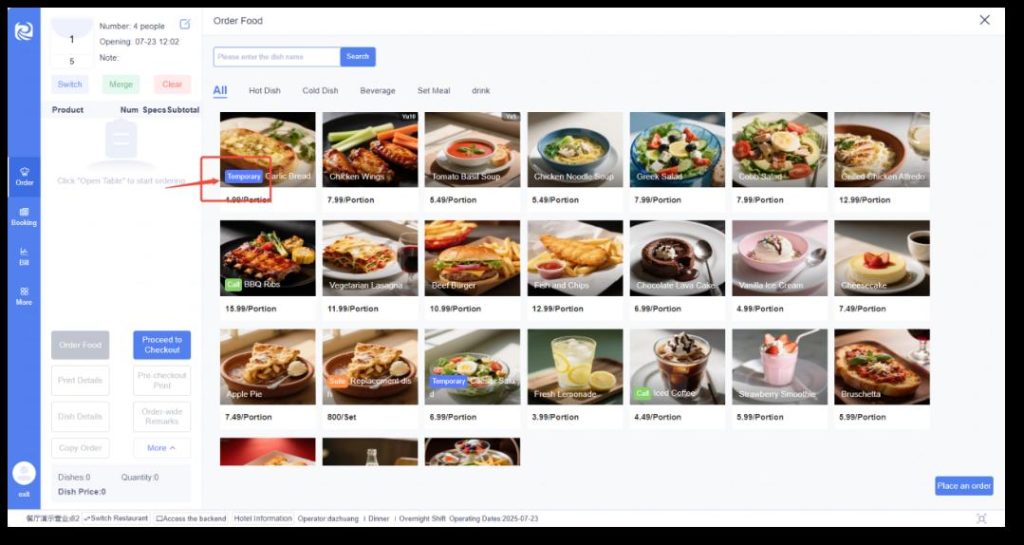
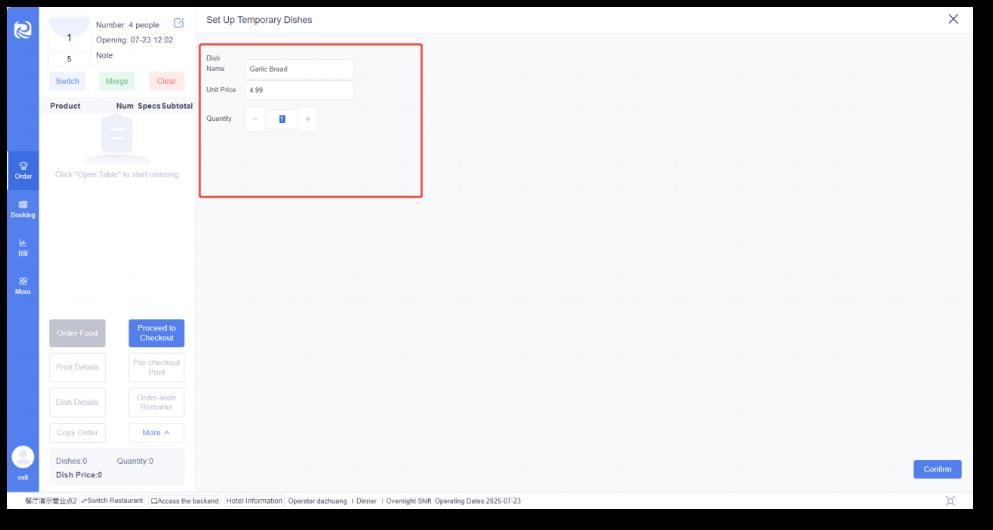
右边菜品区域显示“临”;单击临时菜进入配置临时菜页面,默认显示后台配置的临时菜名称、单价、份数默认为 1,可进行修改;临时菜名称不一样时,
左侧显示的已点菜品显示“临”(临时菜设置路径:后台管理–菜谱管理–菜品管理–新增/编辑菜品–菜品属性–临时菜)。
The dish area on the right displays “Temp”; clicking on a temporary dish will enter the page for configuring temporary dishes. By default, it
shows the name, unit price of the temporary dish configured in the backend, with the number of servings defaulting to 1, which can be
modified. When the names of temporary dishes are different, the ordered dishes displayed on the left will show “Temp” (Path for setting
temporary dishes: Backend Management — Menu Management — Dish Management — Add/Edit Dishes — Dish Attributes — Temporary
Dishes).
(三)、点菜(Order dishes)
Ø
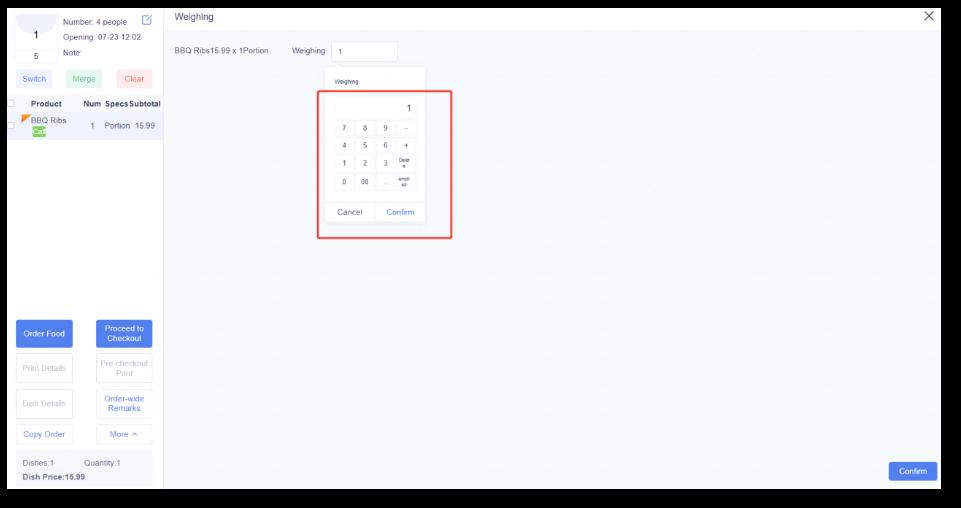
称重菜(Weighed dish):
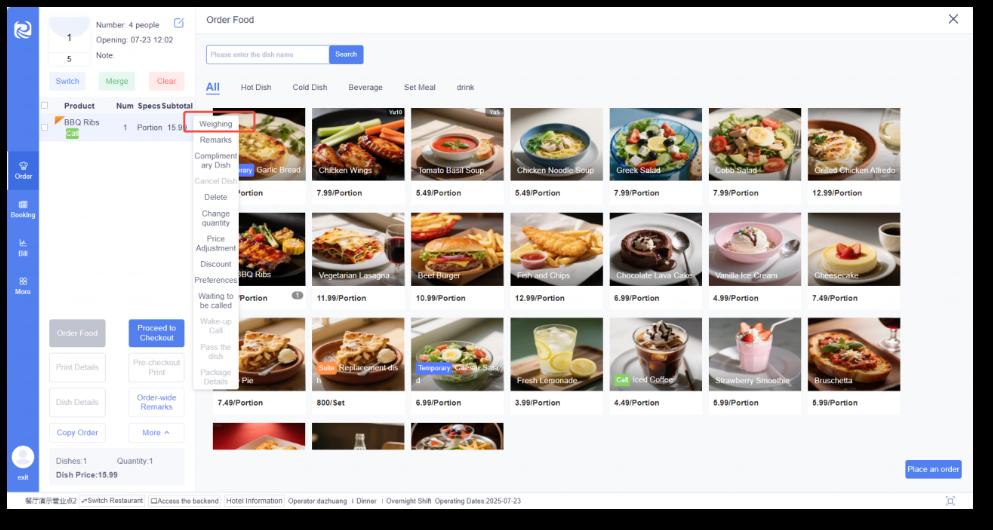
海鲜等需称重场景,客人点菜下单后,商家结账前可修改数量,完
成称重(当完成称重确认后,不再显示“称”;称重菜设置路径:
后台管理–菜谱管理–菜品管理–新增/编辑菜品–菜品属性–称重菜)
注:称重菜必须完成称重确认,才能去结账。
For scenarios involving seafood and other items that require
weighing: After customers place their orders, merchants can
adjust the quantity and complete the weighing process
before checkout. (Once the weighing is confirmed, the
“Weigh” indicator will no longer be displayed. Path for setting
weighing items: Backend Management → Menu Management
→ Dish Management → Add/Edit Dishes → Dish Attributes →
Weighing Items)
Note: Weighing items must undergo weighing confirmation
before checkout can proceed.
(三)、点菜(Order dishes)
Ø
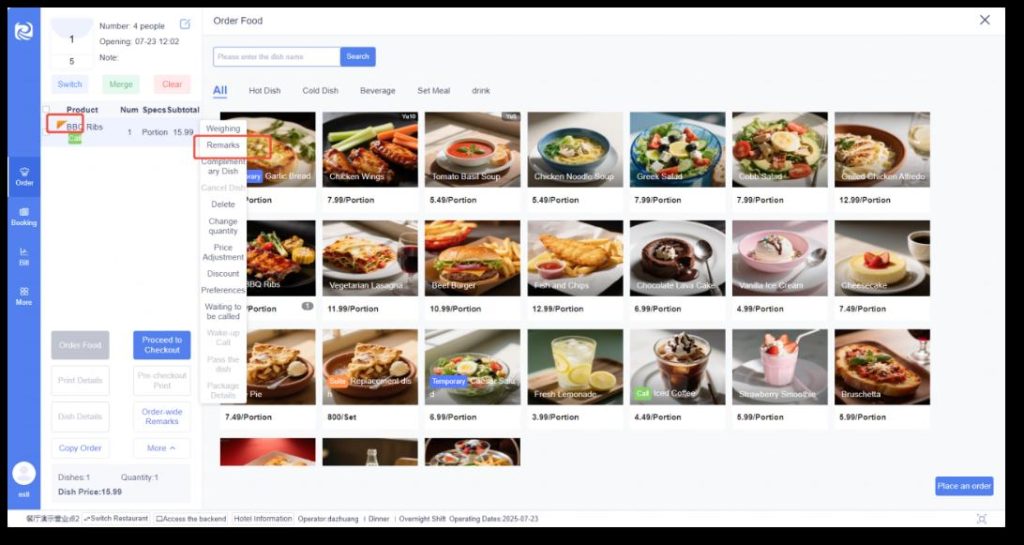
菜品备注(Dish remarks):
客人点菜后,下单前(下单后单据已同步至厨房,不允许再
修改备注)对个别菜品有些特殊要求需同步至厨房出品;
支持多选或自定义输入(系统备注设置路径:后台管理–菜
谱管理– 备注管理–新增/编辑备注–菜品备注)
After customers order dishes, if they have special
requirements for certain dishes that need to be
synchronized to the kitchen for preparation, they can
specify them before placing the order (once the order
is placed, the receipt will be synchronized to the
kitchen, and no further modifications to the remarks
will be allowed).
Multiple selection or custom input is supported. (Path
for system remark settings: Backend Management —
Menu Management — Remark Management —
Add/Edit Remarks — Dish Remarks).
(三)、点菜(Order dishes)
Ø
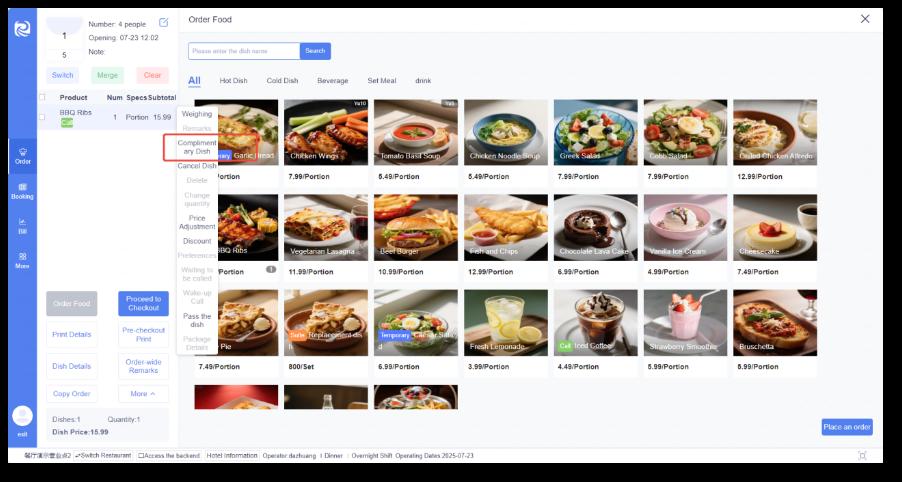
赠菜(Complimentary dish):
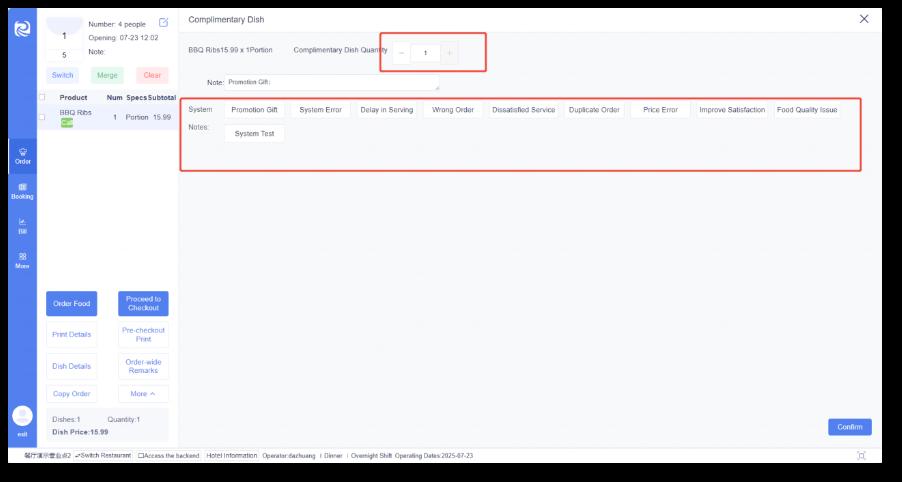
- 单击需要赠送的已点菜品,点击赠菜则进入赠菜页面;选择需要赠菜
的份数,最大可赠菜份数是菜品已点数量。
Click on the already ordered dish that you want to give as a
complimentary item, then click “Complimentary” to enter the
complimentary dish page; select the number of portions to be
given as complimentary, with the maximum number of
complimentary portions being the quantity of the already
ordered dish.
- 赠菜原因支持多选或自定义输入(系统备注设置路径:后台管理–菜
谱管理–备注管理–新增/编辑备注–赠菜备注)。
Multiple selection or custom input is supported for the reason of
complimentary dishes (System remark setting path: Backend
Management — Menu Management — Remark Management —
Add/Edit Remarks — Complimentary Dish Remarks).
(三)、点菜(Order dishes)
Ø
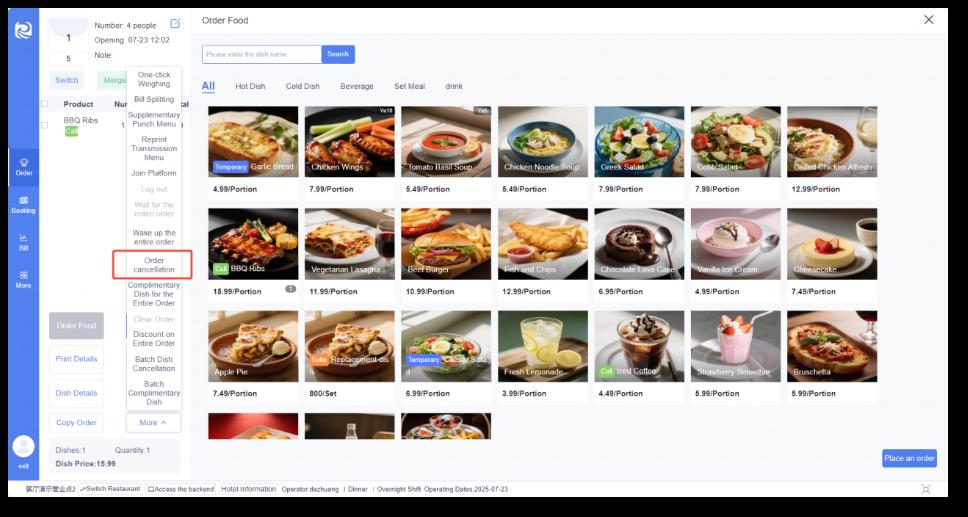
退菜/退单(Dish return / Order
cancellation):
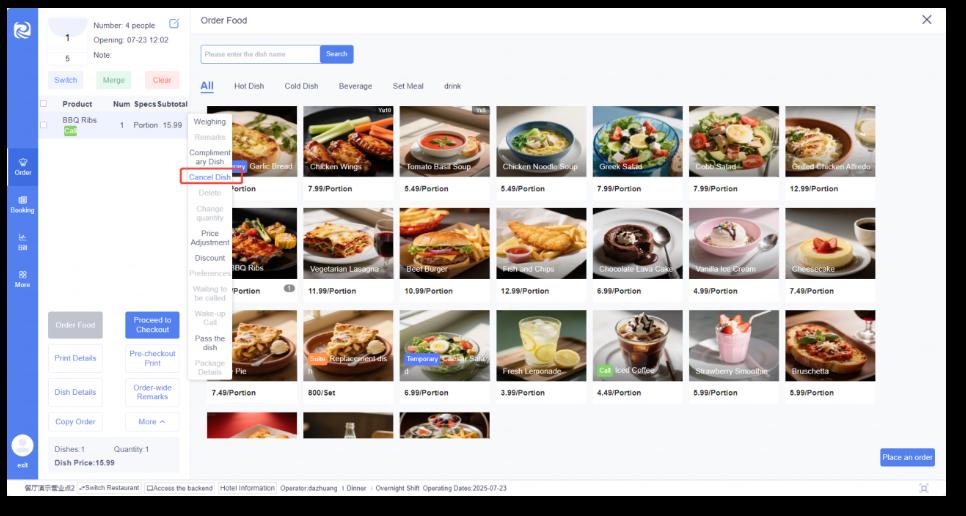
- 单击已下单菜品,点击退菜,进入退菜页面。
Click on the ordered dish, then click “Return Dish” to enter the
dish return page.
- 选择需要退菜的份数,退菜原因支持多选或自定义输入(系统备注设
置路径:后台管理– 菜谱管理–备注管理–新增/编辑备注–退菜备
注)。
Select the number of portions to be returned. For the reason of
returning dishes, multiple selection or custom input is supported.
(Path for system remark settings: Backend Management — Menu
Management — Remark Management — Add/Edit Remarks —
Dish Return Remarks)
(三)、点菜(Order dishes)
Ø
删除(Delete):
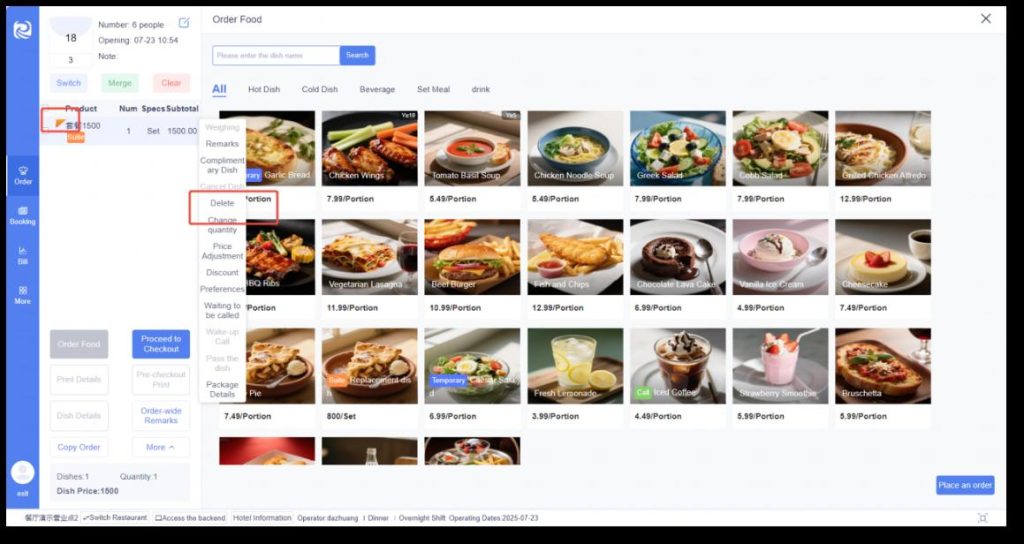
单击需要删除的未下单菜品,点击删除。删除成功后,左侧不显示已删菜品。
Click on the unordered dish that needs to be deleted, then click “Delete”. After successful deletion, the deleted dish will no
longer be displayed on the left side.
(三)、点菜(Order dishes)
Ø
改量(Change quantity):
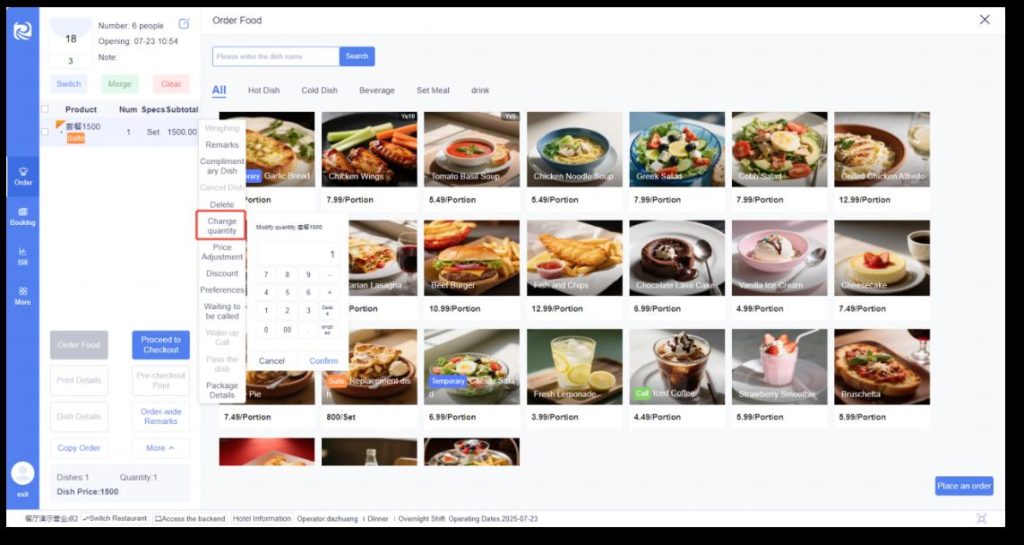
- 单击需要改量的未下单菜品,点击改量。
Click on the unordered dish for which you need to
adjust the quantity, then click “Adjust Quantity”.
- 页面显示菜品初始份数,可直接输入需要改的数字,也
可以点击数字键盘上的加减,数量至少为1,点击确定即
可改量成功。
The page will display the initial number of portions
of the dish. You can either directly enter the desired
number or click the plus or minus buttons on the
numeric keypad. The quantity must be at least 1.
Click “Confirm” to successfully adjust the quantity.
(三)、点菜(Order dishes)
Ø
改价/恢复原价(Change quantity/Return to
original price):
a、改价(Price adjustment)
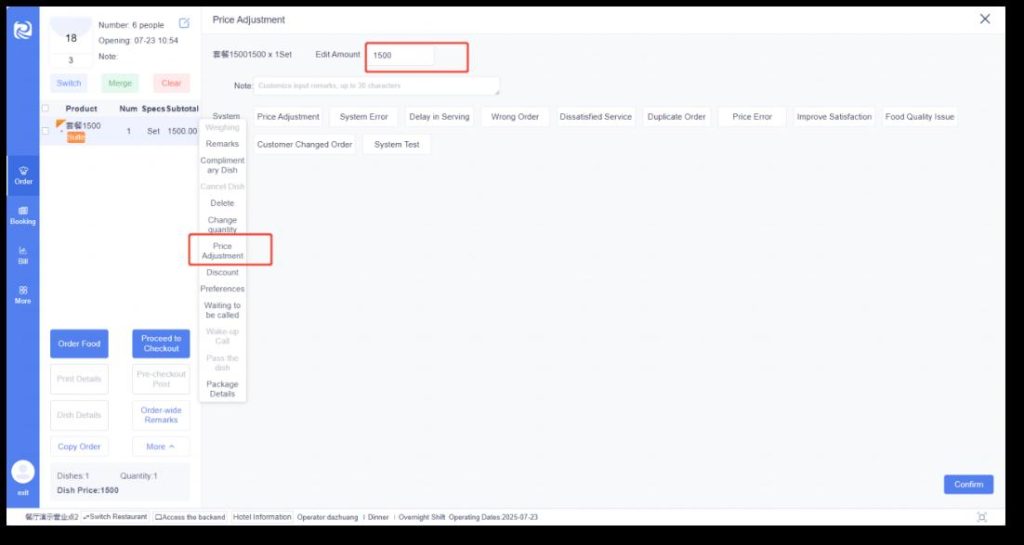
- 单击需要改价的菜品,点击改价,进入改价页面。
Click on the dish for which the price needs to be adjusted, then
click “Price Adjustment” to enter the price adjustment page.
- 默认显示当前菜品 1 份的单价,可自定义修改,改价原因支持多选或
自定义输入(系统备注设置路径:后台管理–菜谱管理– 备注管理–新
增/编辑备注–改价备注)。
The unit price of 1 portion of the current dish is displayed by
default, and it can be modified customarily. For the reason of
price adjustment, multiple selections or custom input are
supported (System remark setting path: Backend Management –
– Menu Management — Remark Management — Add/Edit
Remarks — Price Adjustment Remarks).
- 改价成功后,菜品价格显示为改后的金额,改价后的菜品不可操作打
折、赠菜、改量。
After the price adjustment is successful, the price of the dish will
be displayed as the adjusted amount. Dishes with adjusted
prices cannot be discounted, given as complimentary dishes, or
have their quantities adjusted.
(三)、点菜(Order dishes)
Ø
改价/恢复原价(Change
quantity/Return to original
price):
b、恢复改价(Restore adjusted price)
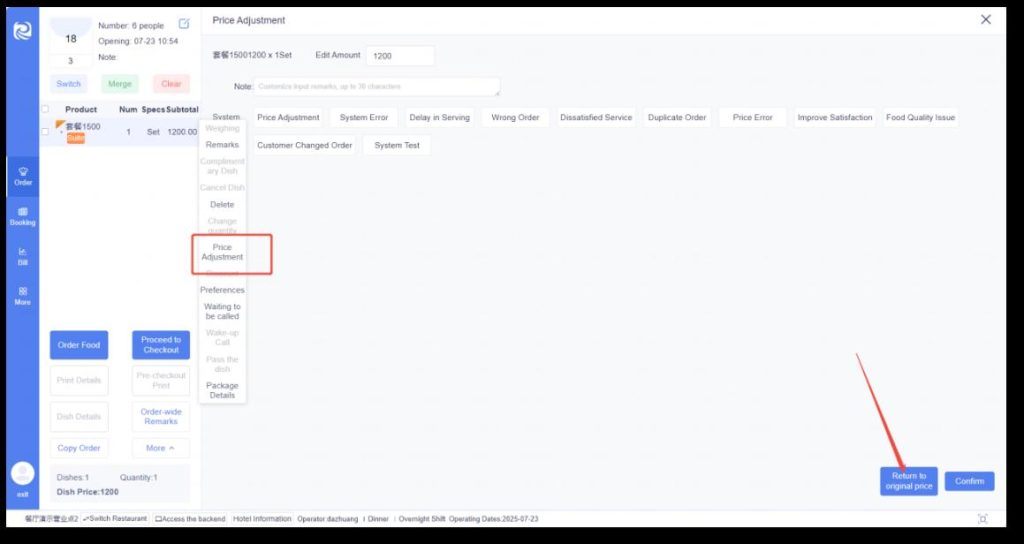
单击已改价菜品,点击改价,进入改价页面,点击恢复原
价则恢复原价成功。
Click on the dish with an adjusted price, then click
“Adjust Price” to enter the price adjustment page.
Click “Restore Original Price” to successfully revert to
the original price.
(三)、点菜(Order dishes)
Ø
打折/恢复原价(Discount/Return to original
price):
a、打折(Discount)
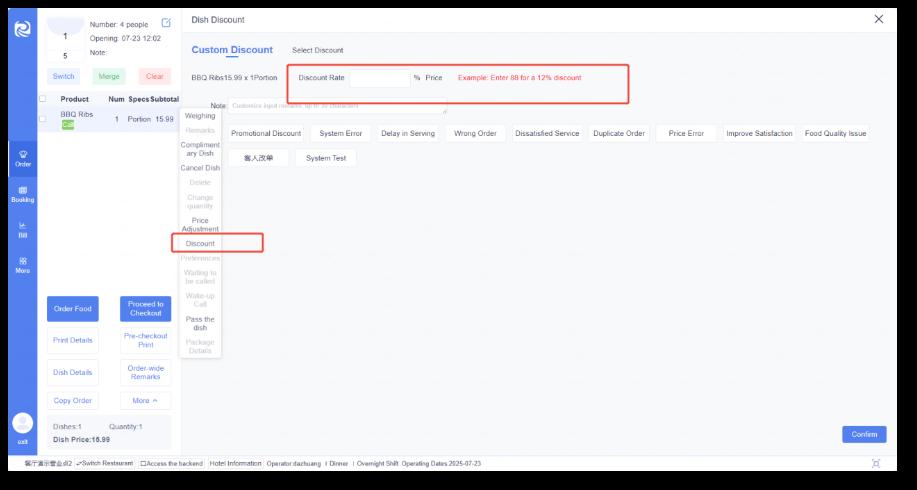
- 单击需要打折的菜品,点击打折,进入打折页面。
Click on the dish that needs a discount, then click “Discount” to
enter the discount page.
- 可自定义折扣或选择后台配置的折扣活动,打折原因支持多选或自定义输
入(系统备注设置路径:后台管理–菜谱管理–备注管理–新增/编辑备注–
打折备注)。
You can customize the discount or select a discount activity
configured in the backend. For the reason for the discount, multiple
selections or custom input are supported (System remark setting
path: Backend Management — Menu Management — Remark
Management — Add/Edit Remarks — Discount Remarks).
b、恢复原价(Restore original price)
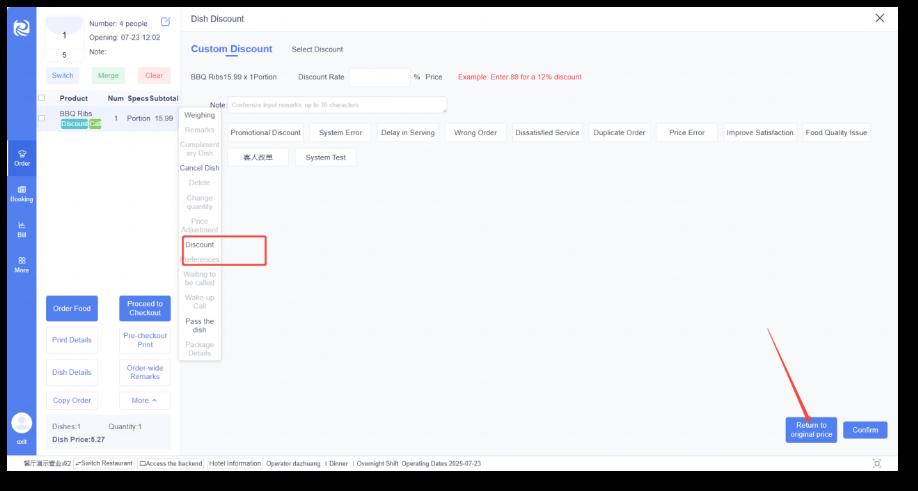
单击已打折菜品,点击打折,进入打折页面,点击恢复原价则恢复原价成功。
Click on the discounted dish, then click “Discount” to enter the
discount page. Click “Restore Original Price” to successfully revert to
the original price.
(三)、点菜(Order dishes)
Ø
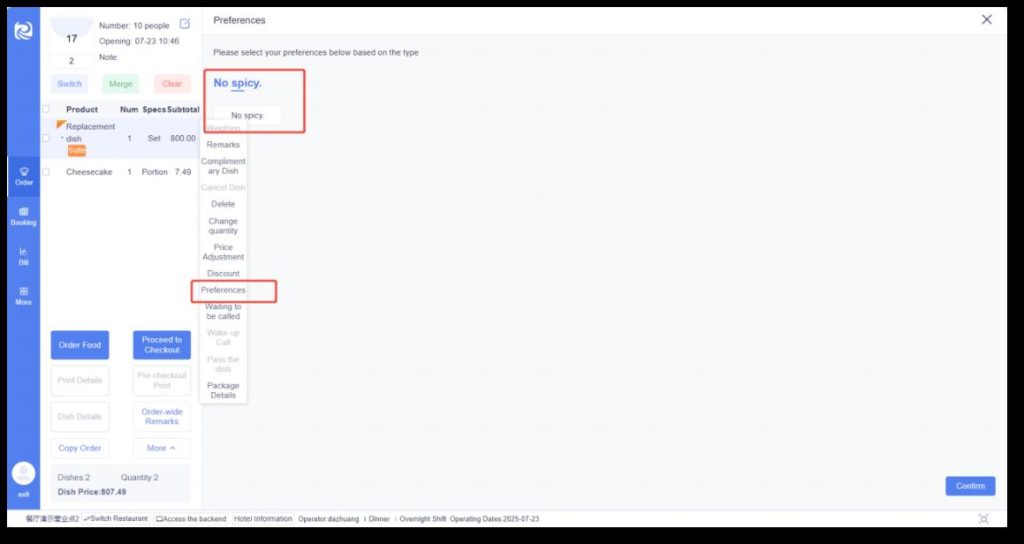
偏好(Preferences):
- 偏好指当前菜品备注,单击需要添加偏好的未下单菜品,点击偏
好,进入偏好页面。
“Preference” refers to the remarks for the current dish. Click
on the unordered dish for which you want to add a
preference, then click “Preference” to enter the preference
page.
- 可多选,选择好偏好后点击右下角的确定按钮则添加偏好成功。
Multiple selections are allowed. After selecting the desired
preferences, click the “Confirm” button in the lower right
corner to successfully add the preferences.
● 左侧菜品下显示已添加的偏好,多个偏好之间以、隔开 (偏好
基础数据设置路径:后台管理–菜谱管理–菜品管理–新增/编辑菜
品–偏好设置)。
The added preferences will be displayed under the dish on
the left side, with multiple preferences separated by “、”
(Path for setting preference basic data: Backend
Management — Menu Management — Dish Management —
Add/Edit Dishes — Preference Settings).
(三)、点菜(Order dishes)
Ø
等叫/叫起(Waiting to be called/Wake-up
Call):
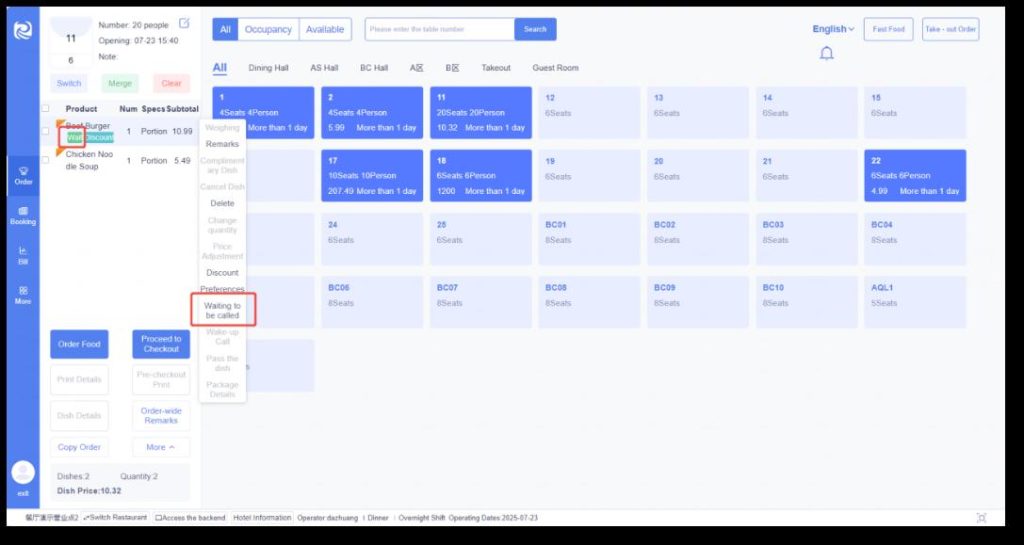
a、等叫(Waiting to be called)
- 指当前菜品在下单后不需要立马制作,操作等叫后厨房会打印出等叫菜
品的点菜单,厨房收到叫起单后才进行制作。
It means that the current dish does not need to be prepared
immediately after being ordered. After the “Waiting to be called”
operation is performed, the kitchen will print out the order ticket for
the dish marked as “Waiting to be called”, and the kitchen will only
start preparing it after receiving the “call to start” notice.
- 单击需要等叫的未下单菜品,点击等叫,店击“确定”则等叫成功。
Click on the unordered dish that needs to be marked as “Waiting to
be called”, then click “Waiting to be called” and press “Confirm” to
successfully set it as “Waiting to be called”.
- 等叫成功后,左侧菜品显示“等”。
After successfully setting as “Waiting to be called”, the dish on the
left side will display “等” (meaning “waiting”).
- 厨房打印等叫菜品点菜单。
The kitchen prints the order ticket for the dish marked as “Waiting
to be called”.
(三)、点菜(Order dishes)
Ø
等叫/叫起(Waiting to be called/Wake-
up Call):
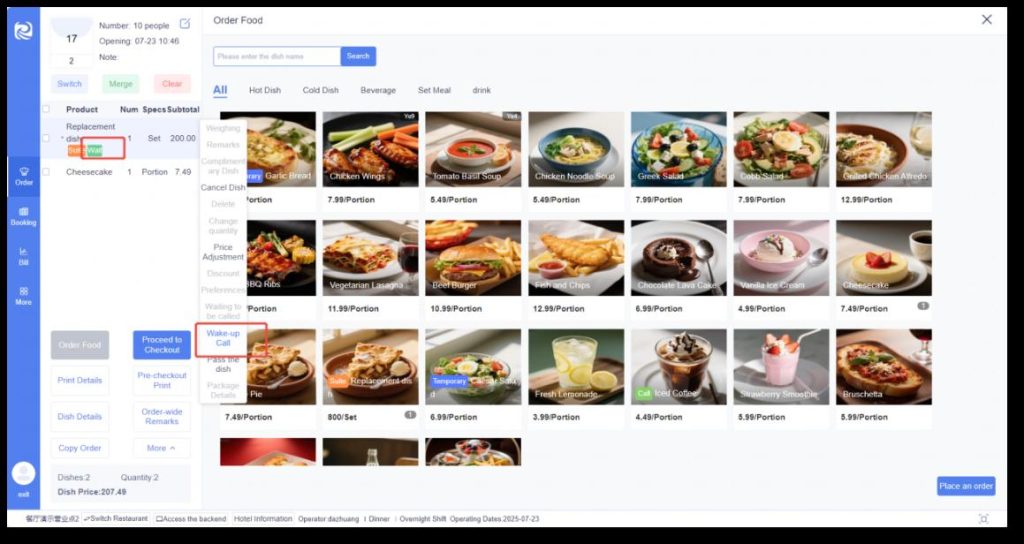
b、叫起(Wake-up Call)
- 单击已等叫的已下单菜品,点击叫起,点击确定则叫起成功。
Click on the ordered dish that has been marked as
“Waiting to be called”, then click “Call to start” and
confirm to successfully initiate the preparation.
- 叫起成功后,厨房会打印叫起的菜品。
After the successful initiation, the kitchen will print the
dish that has been called to start preparation.
(三)、点菜(Order dishes)
Ø
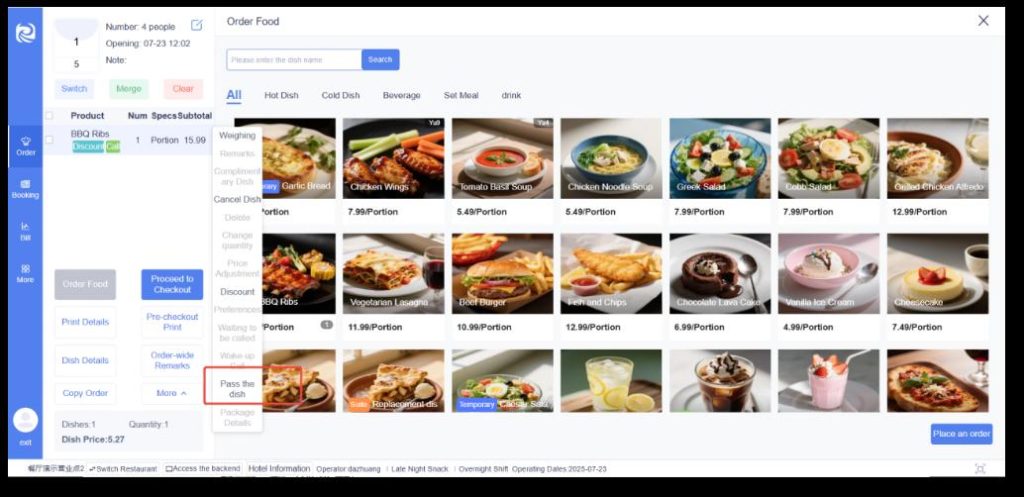
转菜(Pass the dish):
- 单击需要转菜的已下单菜品,点击转菜,进入转菜页面。
Click on the already ordered dish that needs to be transferred,
then click “Transfer Dish” to enter the dish transfer page.
- 显示所有已占用的堂食桌台,单击需要转菜的目标桌台则转菜成功。
All occupied dine-in tables will be displayed. Click on the target
table to which the dish needs to be transferred, and the dish
transfer will be successful.
- 转菜成功后,菜品与对应的菜品金额从原桌台转到目标桌 台且打印出
转菜单。
After the successful transfer, the dish and its corresponding
amount will be moved from the original table to the target table,
and a dish transfer receipt will be printed out.
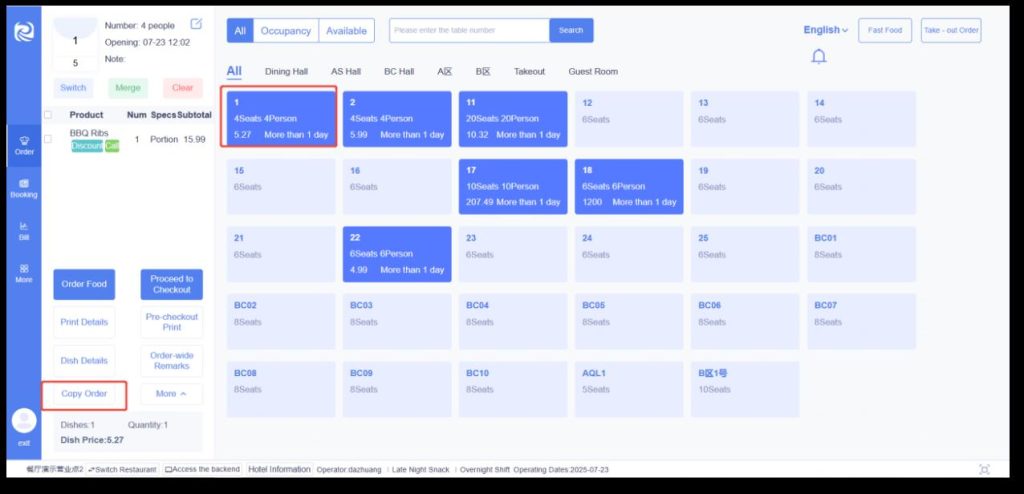
(三)、点菜(Order dishes)
Ø
复制点菜(Copy Order):
- 单击已点菜桌台,点击复制点菜,进入复制点菜页面,显
示所有已占用的堂食桌台。
Click on the table with already ordered dishes, then
click “Copy Orders” to enter the order copying page,
where all occupied dine-in tables will be displayed.
- 点击目标桌台,复制菜品成功后,目标桌台左侧显示复制
过来的菜品,菜品状态为未下单。
Click on the target table. After the dishes are
successfully copied, the copied dishes will be displayed
on the left side of the target table, with their status
marked as “Not Ordered”.
- 完全复制所有菜品价格及账单至新桌台。
All dish prices and the bill will be fully copied to the
new table.
(三)、点菜(Order dishes)
Ø
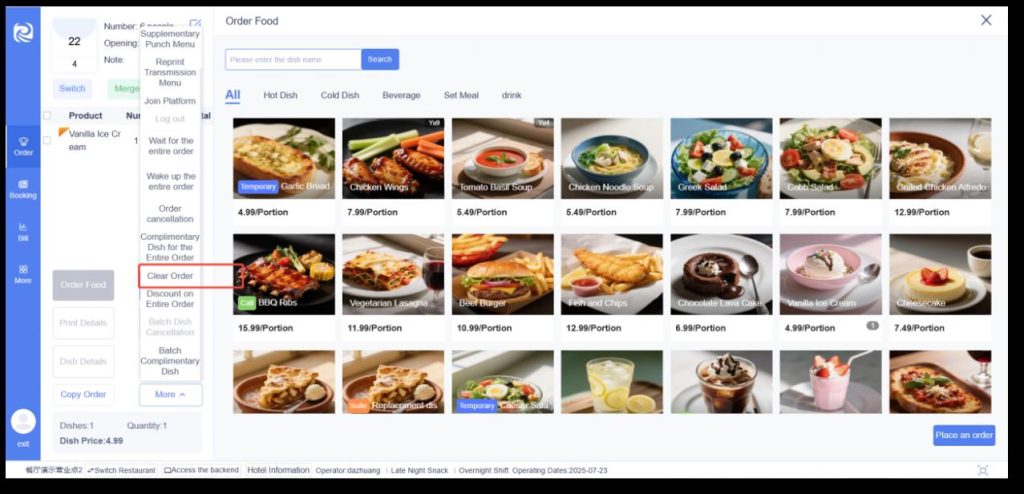
清空点菜(Clear Order):
单击已点菜桌台,点击清空点菜,清空点菜成功后,左侧不显示未下单菜品。
Click on the table with already ordered dishes, then click “Clear Orders”. After the orders are successfully cleared, the
unordered dishes will no longer be displayed on the left side.
(三)、点菜(Order dishes)
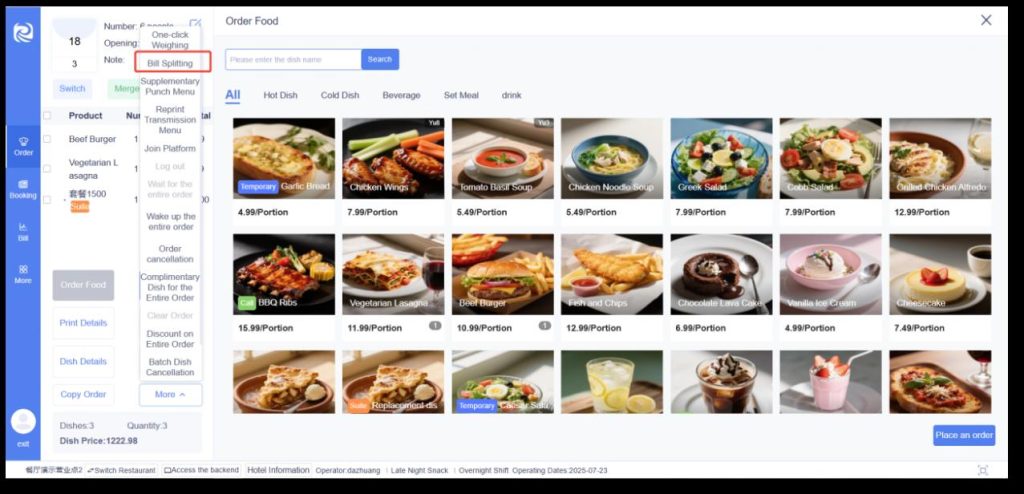
Ø
账单拆分(Bill Splitting):
- 当菜品下单后,在更多中,可选择“账单拆分”按钮,
对该账单进行拆分。
After a dish is ordered, you can select the “Split
Bill” button in the “More” options to split the bill.
- 当账单存在未下单、赠菜、折扣、部分退菜、客人数
为 1 的情况下,该功能无法使用点击进入账单拆分页面。
The function cannot be used to enter the bill
splitting page if the bill has unordered dishes,
complimentary dishes, discounts, partial dish
returns, or if the number of guests is 1.
预定
Reservation
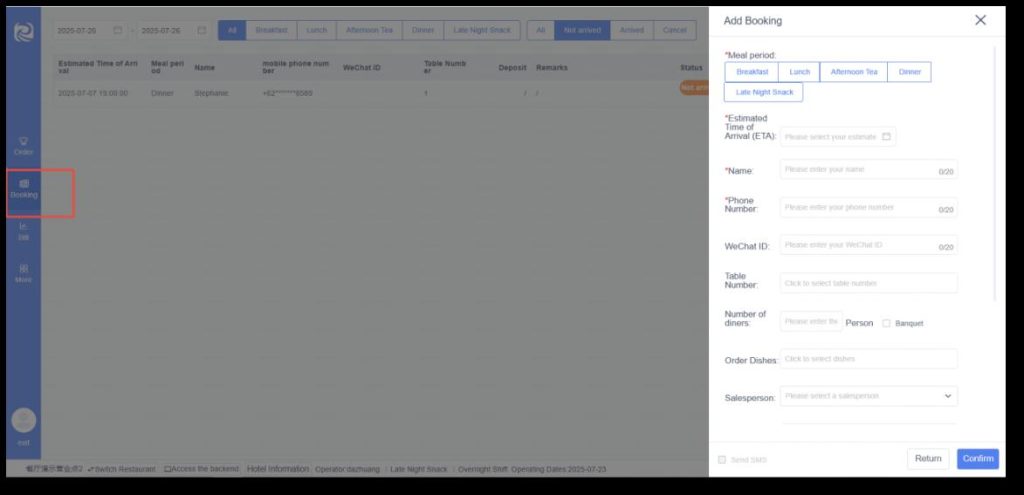
(一)、新增预订(Add Booking)
- 新增预订的同时可同步完成预订金的收取(也可单独收取,
查看预订–支付明细–新增预订金),新增预订成功后,自动
打印预订单。
When adding a new reservation, the collection of the
reservation deposit can be completed simultaneously (it
can also be collected separately; check Reservations →
Payment Details → Add Reservation Deposit). After a
new reservation is successfully added, the reservation
receipt will be printed automatically.
- 注:新增时会自动打印,编辑不再重复打印,有 需要可查看
预订–补打预订单。
Note: The receipt will be printed automatically when a
new reservation is added. No duplicate printing will
occur during editing. If needed, you can check
Reservations → Reprint Reservation Receipt.
(一)、新增预订(Add Booking)
新增预订填写说明(Instructions for Filling in New Reservations)
- 餐段:展示已启用餐段(餐段设置路径:后台管理–餐厅设置–餐段设
置–启用/禁用)
- 预抵时间:必填项,不能小于当前时间,若已到预抵日期+预订餐段,
前台可办理预订开台业务
- 姓名:必填项,预订人姓名
- 手机号:必填项,预订人手机号,11 位有效电话
- 微信号:非必填,长度输入不超过20个字
- 桌号:预订桌台,单选(暂不支持预订多桌,需分开预订;同一桌台同
一天同一餐段有效预订只能有一个)
- 就餐人数:吃饭人数
- 宴席:是否为宴席
- 预订菜品:提前预订菜品,预订开台后自动带出
- 销售员:下拉选择销售员
- 备注:预订备注
- 付款方式:预订金支付方式,不含储值卡、哑房挂账、临时挂账、房间
挂账
- 预订金:预订金金额,预订开台后自动转收款
- 外部订单号:如,美团、携程的预定单号
- 来源渠道:如,来源于美团、携程 或者电话来电等
- Meal Period: Displays enabled meal periods (Path for meal period
settings: Backend Management → Restaurant Settings → Meal Period
Settings → Enable/Disable).
- Estimated Arrival Time: Required field. It cannot be earlier than the
current time. If the estimated arrival date and reserved meal period have
been reached, the front desk can process the reservation and table
opening.
- Name: Required field. Name of the person making the reservation.
- Phone Number: Required field. Phone number of the reservation maker,
which must be a valid 11-digit number.
- WeChat ID: Optional field. The input length shall not exceed 20
characters.
- Table Number: Reserved table, single selection (Multi-table reservations
are not supported temporarily; separate reservations are required. Only
one valid reservation can exist for the same table, on the same day, and
for the same meal period).
- Number of Diners: The number of people dining.
- Banquet: Indicate whether the reservation is for a banquet.
- Pre-ordered Dishes: Dishes reserved in advance, which will be
automatically displayed after the table is opened for the reservation.
- Salesperson: Select a salesperson from the drop-down list.
- Remarks: Reservation notes.
- Payment Method: Payment method for the reservation deposit,
excluding stored-value cards, dummy account credit, temporary credit,
and room account credit.
- Reservation Deposit: Amount of the reservation deposit, which will be
automatically converted to received payment after the table is opened for
the reservation.
- External Order Number: For example, reservation numbers from
Meituan, Ctrip, etc.
- Source Channel: For example, from Meituan, Ctrip, phone call, etc.
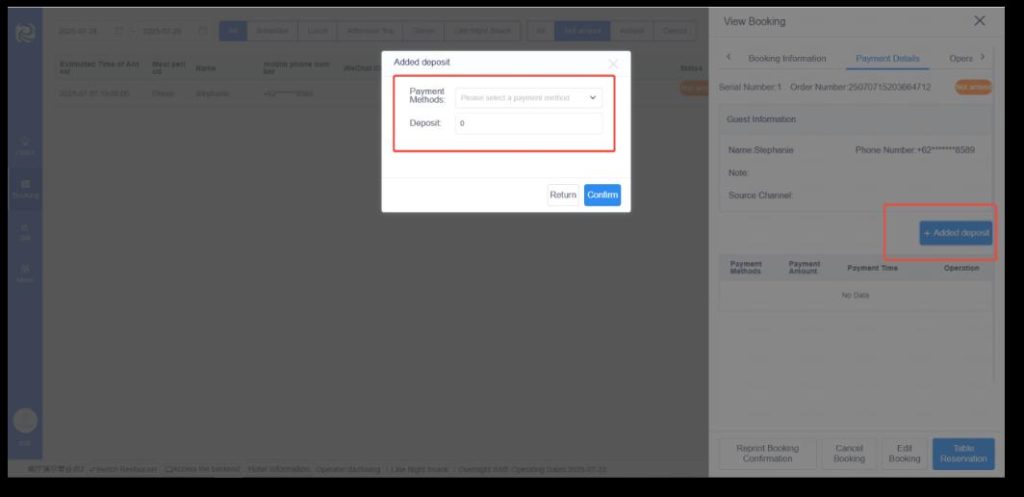
(二)、收预定金(Deposit)
- 单击预订单,进入查看预订界面,点击支付明细,新增预订金,
预订金收取成功后自动打印预定金单(补打预定金单:查看预订–
支付明细–补打)。
Click on the reservation order to enter the reservation
viewing interface, then click “Payment Details” and select
“Add Reservation Deposit”. After the reservation deposit is
successfully collected, the reservation deposit receipt will be
printed automatically (To reprint the reservation deposit
receipt: go to View Reservations → Payment Details →
Reprint).
- 付款方式:预订金支付方式,不含储值卡、哑房挂账、临时挂账、
房间挂账。
Payment Method: The payment method for the reservation
deposit, excluding stored-value cards, dummy account credit,
temporary credit, and room account credit.
- 预订金:预订金金额,预订开台后自动转收款。
Reservation Deposit: The amount of the reservation deposit,
which will be automatically converted to received payment
after the reserved table is opened.
(三)、取消预订(Cancel Booking)
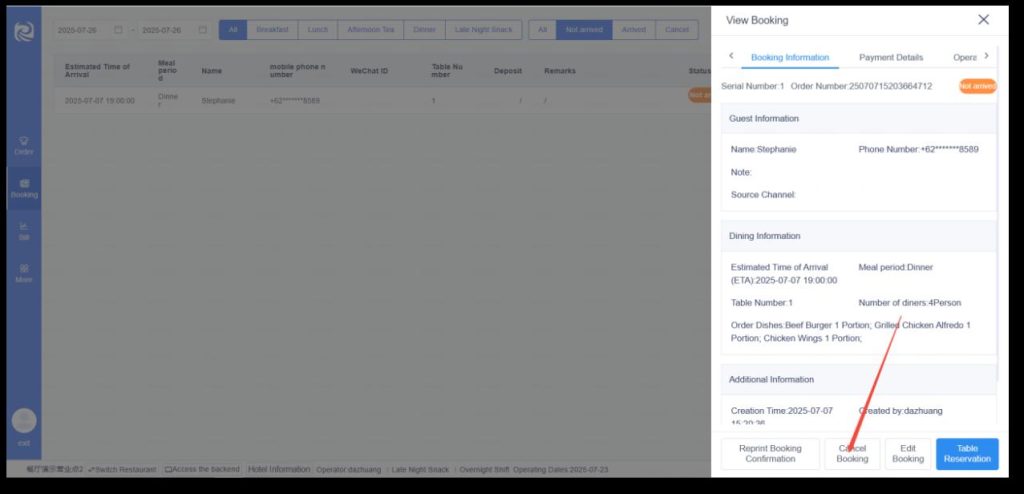
单击预订单,进入查看预订界面,基于“未到”预订单
可取消预订(注:有预订金的预订不可直接取消,需先
撤销预订金,查看预订–支付明细–删除)。
Click on the reservation order to enter the
reservation viewing interface. Reservations marked
as “Not Arrived” can be canceled (Note:
Reservations with a deposit cannot be canceled
directly; the deposit must first be revoked. Go to
View Reservations → Payment Details → Delete).
(四)、预定开台(Table Reservation)
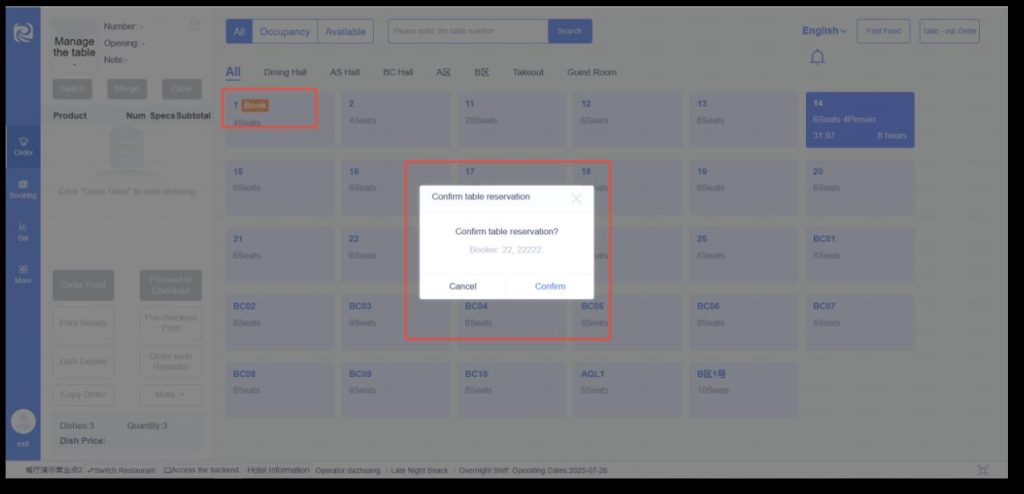
- 当天时间与当前营业餐段的预订单,点单界面,桌台
盘显示“订”。
For reservations corresponding to the current day
and the ongoing business meal period, the table
icon on the ordering interface will display the
character “订” (reserved).
- 点击桌台可办理预订开台或普通开台。
Clicking on the table allows you to process either a
reserved table opening or a regular table opening.
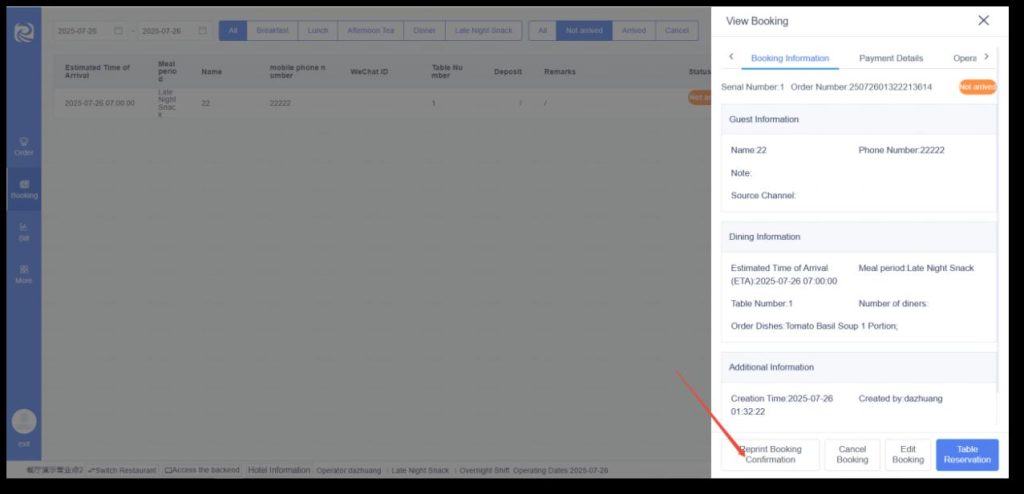
(五)、查看预定(View Booking)
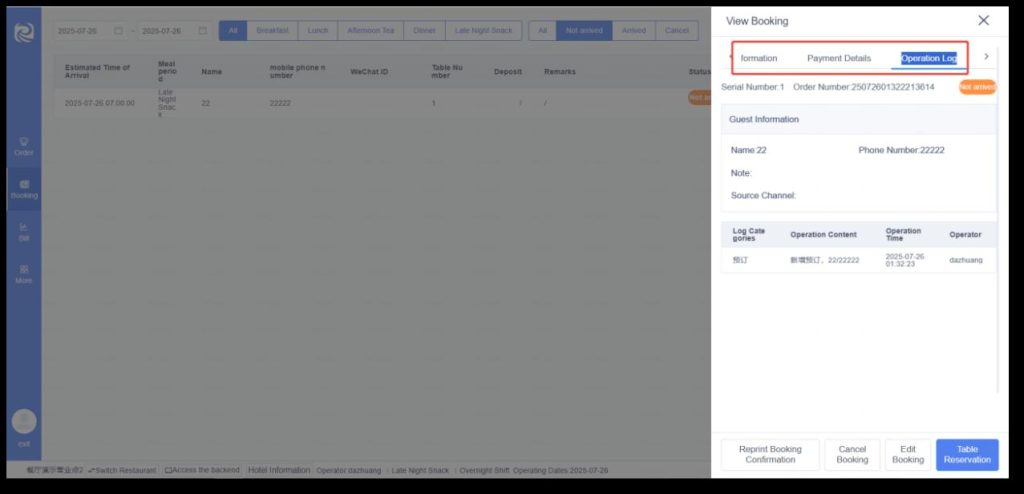
查看预定包含预定信息、支付明细、操作日志。
Viewing a reservation includes Booking Information, Payment Details, and Operation Log.
(六)、补打预定(Reprint Booking Confirmation)
补打预订单路径:前台收银–预订–单击预订单–补打预订单。
Path for reprinting reservation orders: Front desk cashier → Reservations → Click on the reservation order → Reprint Booking
Confirmation.
账单
Bill
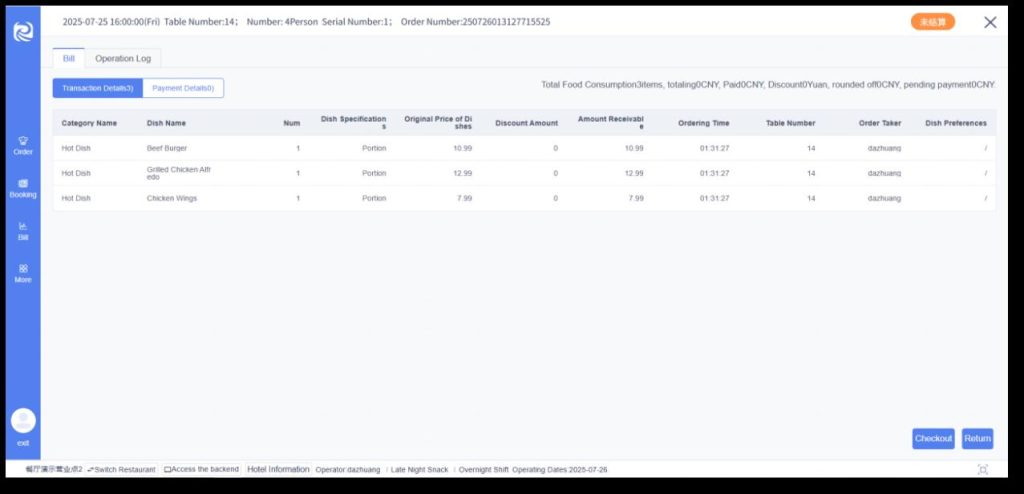
(一)、消费明细(Transaction Details)
单击账单进入账单详情,进入账单页面后,可点击进入未结算、已结算、临时挂账、撤台状态的账单详情 总消费菜品多少件:点菜数量总和-退
菜数量。
Click on a bill to enter its details. After entering the bill page, you can access the details of bills in the statuses of unsettled, settled,
temporarily 挂账 (temporarily credited), and table removed.
Total number of consumed dishes: total number of ordered dishes – number of returned dishes.
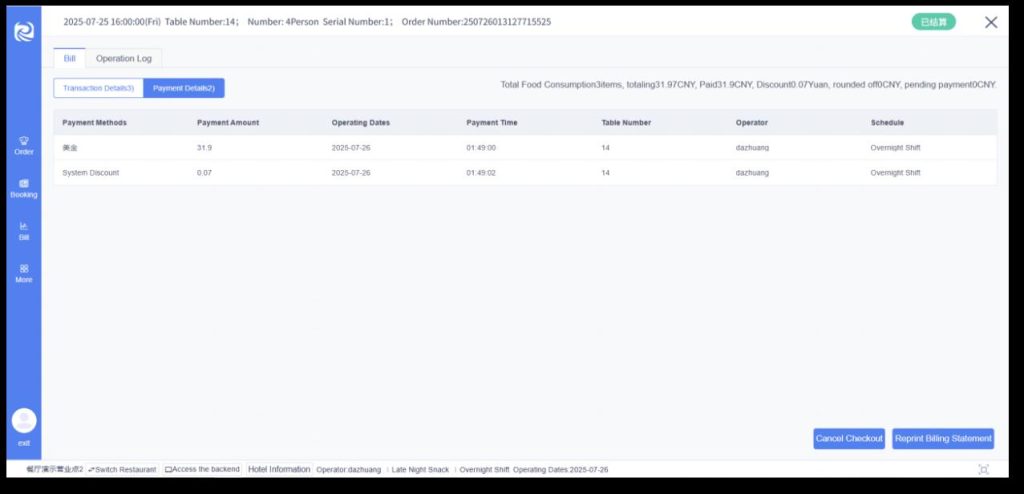
(二)、支付明细(Payment Details)
从消费明细切换至支付明细,在结账页面每入 1 笔账就记录一条支付明细,支付明细页面账单每个状态的操作都与消费明细一致。
Switch from the consumption details to the payment details. On the checkout page, each payment entered will be recorded
as a payment detail. The operations for each status of the bill on the payment details page are consistent with those on the
Transaction Details.
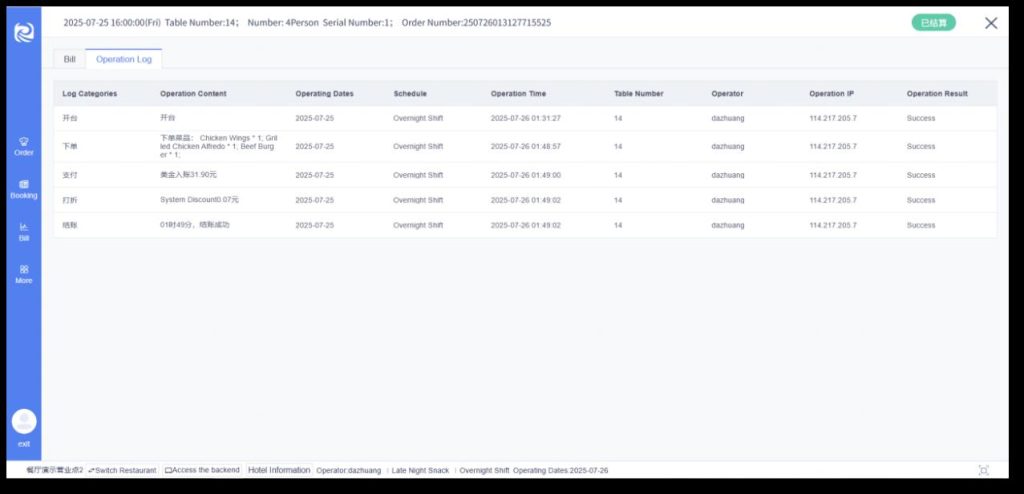
(三)、操作日志(Operation Log)
操作桌台后日志数据显示。
Log data will be displayed after operating the table.
其他
Other
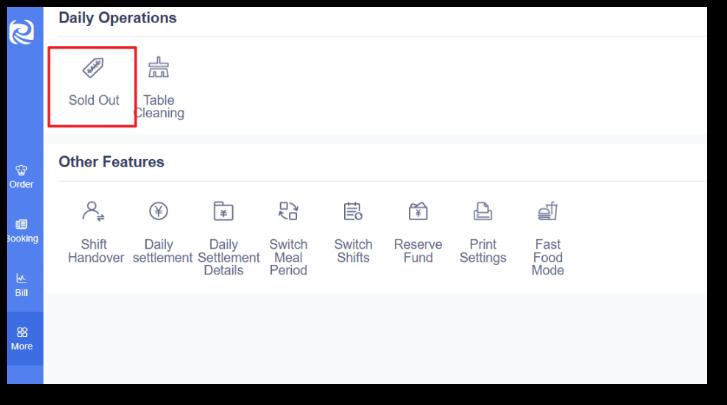
(一)、估清(Sold Out)
单击沽清,进入沽清页面,可操作菜品沽清,取消已沽清菜品。
Click “Sold Out” to enter the sold-out page, where you can mark dishes as sold
out or cancel the sold-out status of already marked dishes.
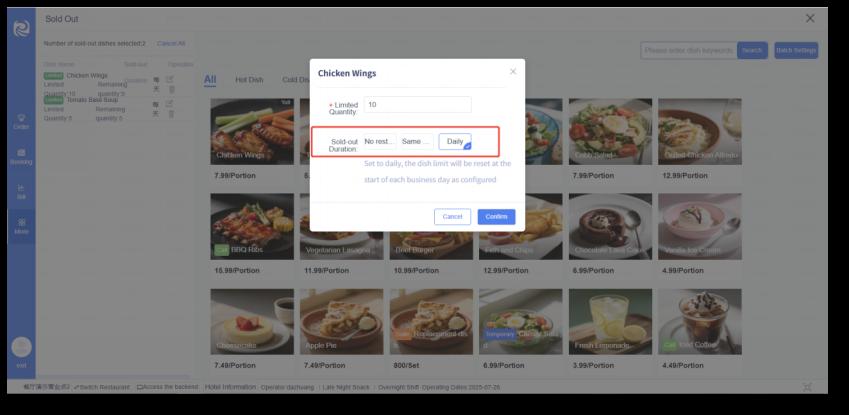
点击菜品,可根据需求设置限量数。
Click on a dish to set a limited quantity as needed.
◆不限:不限时间,针对限量扣完后,剩余数为0,菜品无法售卖。
No restrictions: No time limit. When the limited quantity is exhausted, the
remaining quantity will be 0, and the dish will not be available for sale.
◆当天:仅当前营业日限量,当前营业日售卖完后,菜品无法售卖,日结后,菜品为正
常状态。
Same Day: Limited quantity only for the current business day. Once the limited
quantity is sold out on the current business day, the dish will not be available
for sale. After the daily settlement, the dish will return to its normal status.
◆每天:按营业日限量,每次日结后,每营业日菜品剩余数将还原到限量数。
Daily: Limited quantity per business day. After each daily settlement, the
remaining quantity of the dish will be reset to the limited quantity for each
subsequent business day.
(二)、桌台清理(Table Cleaning)
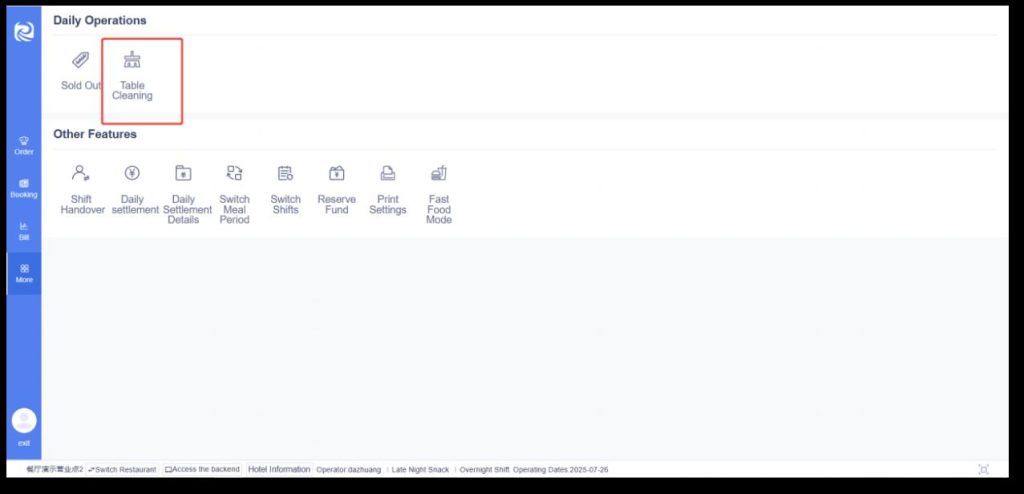
桌台点击没反应,无法正常结账退台,可操作桌台清理;清理前,请确认当前桌台无“未结账”订单,否则将操作失败。
If clicking on the table yields no response and you cannot check out or close the table normally, you can perform a table
cleanup. Before cleaning up, please confirm that there are no “unsettled” orders for the current table; otherwise, the
operation will fail.
(三)、交接单(Shift Handover)
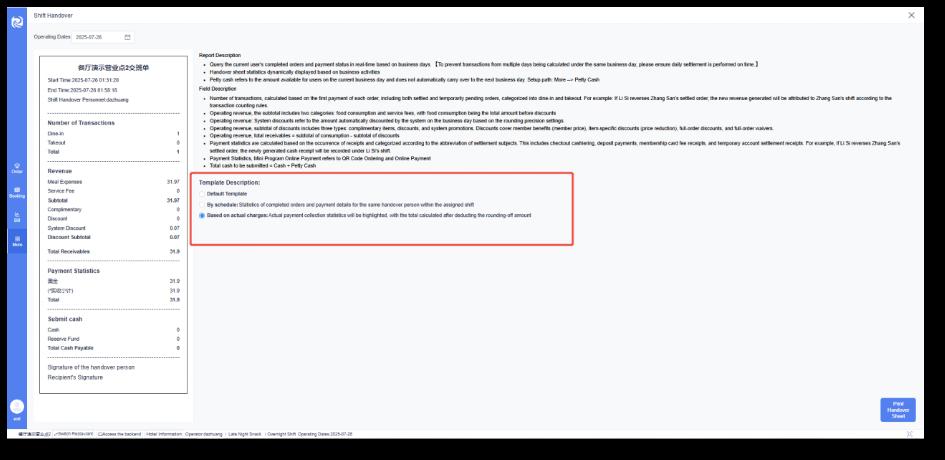
a、默认班次:按营业日实时查询当前用户,已结订单消费与收款情况。
Default Template: Inquire about the current user in real-time
according to the business day, as well as the consumption and
collection status of settled orders.
b、按班次:按照交接班次,统计交接班次内的同一个交接班不同班次下的
已结订单和收费情况,支付统计模块会显示当天营业日内的临时挂账(消)
的费用,也就是临时挂转转结的钱。
By schedule: Statistics on settled orders and charging status under
different shifts within the same handover shift according to the
handover shift. The payment statistics module will display the
temporary credit (write-off) fees within the current business day, that
is, the money transferred from temporary credit.
C、按实收:将凸显实际收款支付统计,支付统计减去抹零金额后算合计。
Based on actual charges: Highlight the statistics of actual payment
received. The total amount of payment statistics is calculated by
subtracting the rounded-down amount.
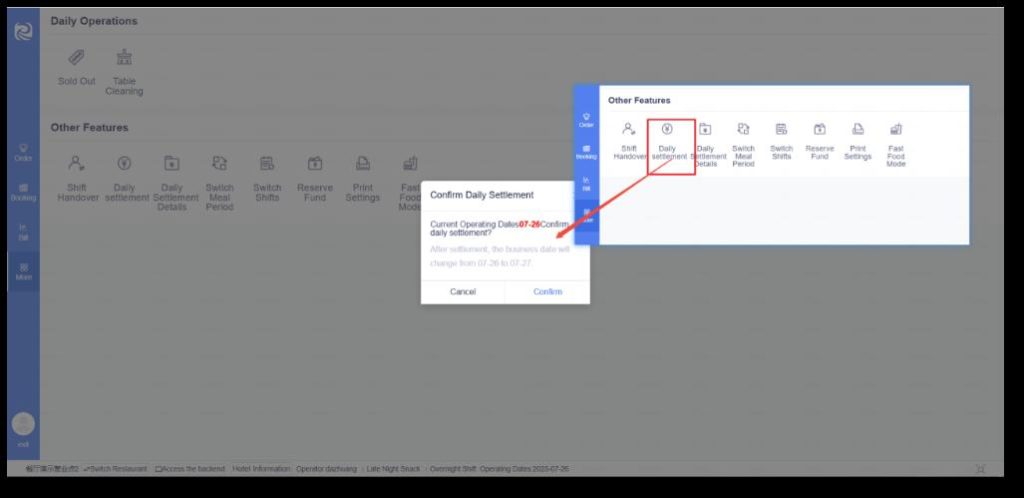
(四)、日结(Daily settlement)
- 点击日结,进行手动日结。
Click “Daily Settlement” to perform manual daily settlement.
- 营业日期当天无未结账单则可手动/自动日结,有未结账订单情况,
无法日结;(自动日结时间设置路径:后台管理–结账设置–其他设置
–自动日结设置)。
If there are no unsettled bills on the business day, manual/auto
daily settlement can be conducted; if there are unsettled orders,
daily settlement is not allowed. (Path for setting auto daily
settlement time: Backend Management → Checkout Settings →
Other Settings → Auto Daily Settlement Settings).
- 点击日结,提示确认是否确定日结,点击确定后,弹出有未结账单待
处理,需处理后才能日结;日结成功后,将推进营业日期,并生成营业
日报(注:当营业日期大于当前日期时不能再日结)。
Click “Daily Settlement” and a prompt will appear to confirm
whether to proceed with the daily settlement. After clicking
“Confirm”, if there are unsettled bills pending processing, a pop-
up will appear indicating that they need to be handled before
daily settlement can be performed. Upon successful daily
settlement, the business date will be advanced, and a business
daily report will be generated (Note: Daily settlement cannot be
performed when the business date is later than the current date).
(五)、切换餐段(Switch Meal Period)
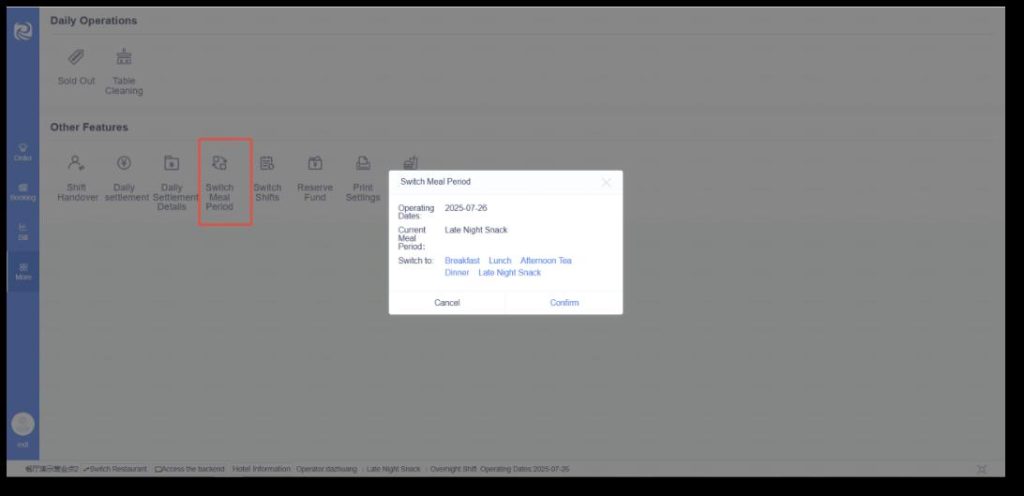
- 单击切换餐段,弹出餐段选择弹窗,餐段弹窗显示已启用的餐段
(餐段设置路径:后台管理–餐厅设置–餐段管理–启用/禁用)。
Click to switch meal periods, and a meal period selection pop-
up will appear. The pop-up displays the enabled meal periods
(Path for meal period settings: Backend Management →
Restaurant Settings → Meal Period Management →
Enable/Disable).
- 切换成功后,点菜页面可点菜菜品,显示为当前餐段的所有已上架
的菜品(当前餐段菜品设置路径:后台管理–菜谱管理–菜品管理–
新增/编辑菜品–供应餐段)。
After a successful switch, the dishes available for ordering on
the ordering page will be all the 上架 (listed) dishes of the
current meal period (Path for setting dishes of the current meal
period: Backend Management → Menu Management → Dish
Management → Add/Edit Dish → Serving Meal Periods).
(六)、切换班次(Switch Shifts)
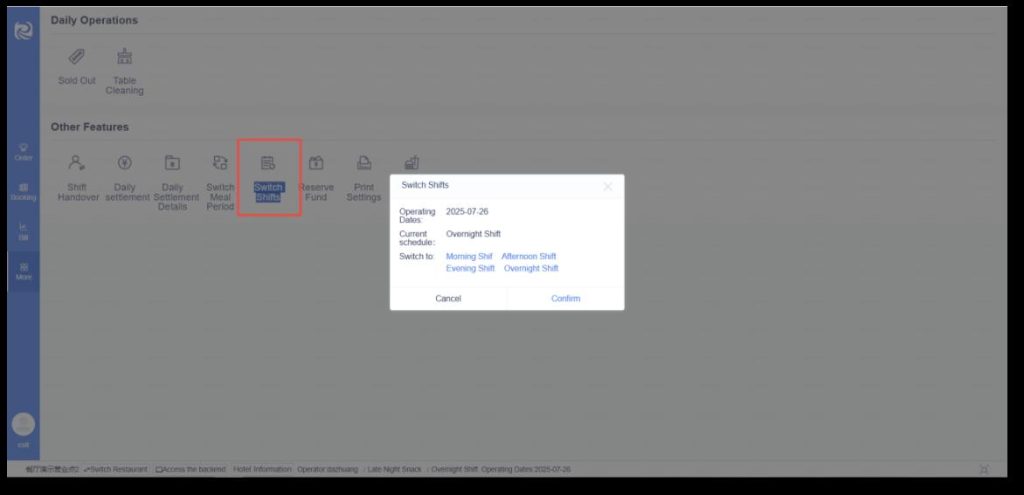
- 单击切换班次,弹出班次选择弹窗,班次弹窗显
示已启用的班次(班次设置路径:后台管理–餐厅设
置–班次管理–启用/禁用)。
Click to switch shifts, and a shift selection pop-
up will appear. The pop-up displays the
enabled shifts (Path for shift settings: Backend
Management → Restaurant Settings → Shift
Management → Enable/Disable).
- 切换成功后,操作桌台,班次纪录为当前选中的
班次。
After a successful switch, when operating the
table, the shift record will be the currently
selected shift.
(七)、备用金(Reserve Fund)
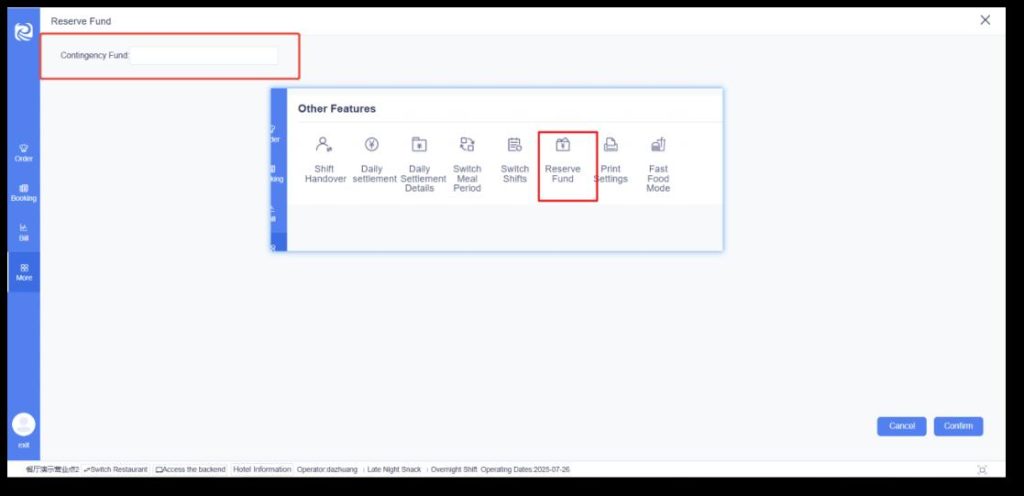
备用金用于收银员交接班时收到上个班次的现金金额。单击
备用金,进入备用金页面,输入完备用金后点击右下角保存,
保存成功后在交接班记录一笔备用金。(注:备用金为按收
银员+按营业日设置,日结跨天后需重新设置新的备用金)。
The Reserve Fund is used for the cash amount
received by the cashier from the previous shift during
shift handover. Click “Reserve Fund” to enter the petty
cash page. After entering the Reserve Fund amount,
click “Save” at the bottom right corner. Once saved
successfully, a record of the Reserve Fund will be
created in the shift handover records. (Note: The
Reserve Fund is set by cashier and business day. After
the daily settlement crosses over to the next day, a new
Reserve Fund amount needs to be set again.)
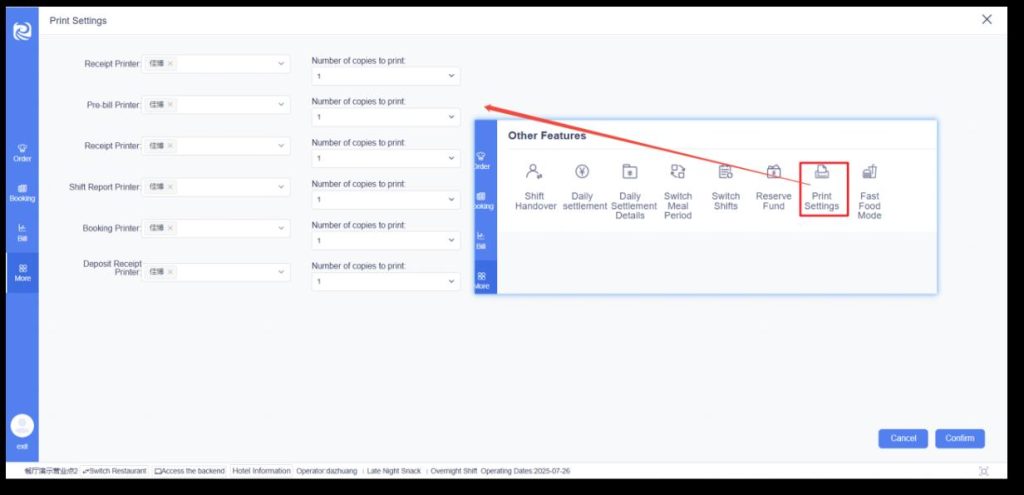
(八)、打印设置(Print Settings)
- 打印设置用于定义前台收银单据打印规则。
Printing settings are used to define the printing rules
for front desk cashier documents.
- 打印机配置:后台——门店设置——厨打设置——打印机
设置。
Printer configuration: Backend —— Store Settings ——
Kitchen Printing Settings —— Printer Settings.
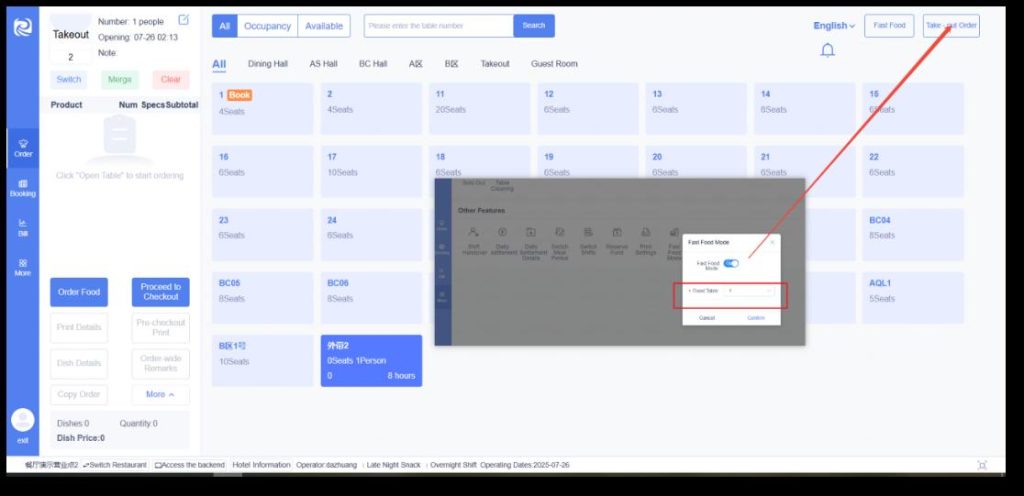
(九)、快餐模式(Fast Food Mode)
开启快餐模式,对固定桌台进行绑定,点击确定。
Enable the fast food mode, bind it to a fixed table,
and click “Confirm”.
此时收银端右上角可展示“快餐”按钮,点击“快
餐按钮”,即可快速开台。
At this point, a “Fast Food” button will be
displayed in the upper right corner of the cash
register terminal. Click the “Fast Food” button to
quickly open a table.
后台管理
Backend Management
(一)、餐厅设置(Restaurant Settings)
Ø
桌台管理(Restaurant Settings):
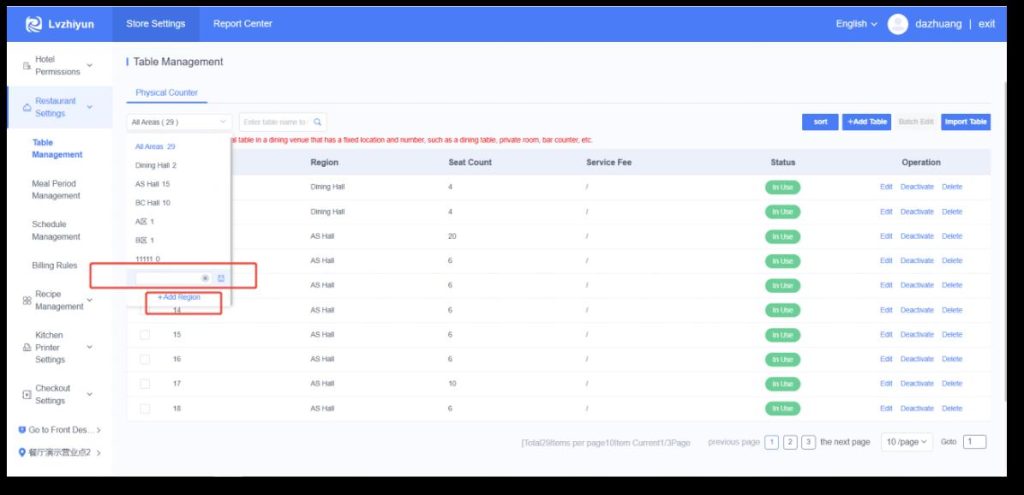
a、桌台区域(Table Area):
默认有1 个区域,可对桌台管理进行新增区域、编辑区域、
删除区域操作;
There is 1 default area. You can perform operations
such as adding, editing, and deleting areas in table
management.
新增/编辑区域:区域名称不可重复,最多30 个字,添加区
域成功后,可在此区域下添加桌台。
Add/Edit Area: The area name cannot be duplicated
and can be at most 30 characters long. After
successfully adding an area, you can add tables under
this area.
(一)、餐厅设置(Restaurant Settings)
Ø
桌台管理(Restaurant Settings):
b、新增桌台/导入桌台:
- 桌台名称:必填,不可重复,最多20 个字;
- 所属区域:必选,下拉显示已有的所有区域;
- 席位数:必填,最大值9999;
- 服务费:非必填,含按固定金额与按消费百分比2 种收费模式。 服务费
默认是关闭状态,开启服务费设置后,在收银端开台操作下单后,桌台服
务费按收费方式自动计算;关闭后,在收银端操作开台、下单不收取服务
费按消费百分比,菜品的营收金额总和x 设置的百分比= 服务费,是否收
取服务费以及收费金额 的计算,结账时实时计算; 按固定金额,在收银
端开台后就产生服务费
- 支付模式:
- 对应该桌台小程序的用餐模式,默认为后支付
- 各支付模式用餐场景:
1. 后支付:先用餐,后小程序结账
2. 先支付:先小程序结账,后用餐
3. 不支付:先用餐,后去前台结账
(一)、餐厅设置(Restaurant Settings)
b. Add Table/Import Table:
– Table Name: Required, cannot be duplicated, maximum 20 characters.
– Belonging Area: Required, drop-down menu displays all existing areas.
– Seating Capacity: Required, maximum 9999.
– Service Charge: Optional, including two charging modes: fixed amount and
percentage of consumption. The service charge is disabled by default. After enabling
the service charge setting, when a table is opened and orders are placed on the cash
register, the table’s service charge will be automatically calculated according to the
charging method. When disabled, no service charge will be charged when opening a
table and placing orders on the cash register. For the “percentage of consumption”
mode, the service charge is calculated as the total revenue of dishes multiplied by the
set percentage, and whether to charge the service charge and the calculation of the
charge amount are performed in real-time during checkout. For the “fixed amount”
mode, the service charge is generated once the table is opened on the cash register.
– Payment Mode:
– Corresponds to the dining mode of the mini-program for this table, default is post-
payment.
– Dining scenarios for each payment mode:
1. Post-payment: Dine first, then checkout via the mini-program.
2. Pre-payment: Checkout via the mini-program first, then dine.
3. No payment via mini-program: Dine first, then checkout at the front desk.
(二)、餐段设置(Meal Period Management)
默认有早餐、午餐、下午茶、晚餐、夜宵 5 个餐段,可操作编辑餐段、停用餐段、启用餐段。
There are 5 default meal periods: breakfast, lunch, afternoon tea, dinner, and late-night snack. You can edit, disable, or
enable these meal periods.
(二)、餐段设置(Meal Period Management)
默认有早餐、午餐、下午茶、晚餐、夜宵 5 个餐段,可操作编辑餐段、停用餐段、启用餐段。
There are 5 default meal periods: breakfast, lunch, afternoon tea, dinner, and late-night snack. You can edit, disable, or
enable these meal periods.
(三)、计费规则(Billing Rules)
a、茶位费
- 计费规则:按人数收费/按桌台收费;默认为按人数收费
- 茶位费提醒:无需提醒、开台时提醒、下单提醒,默认为无需提醒
- 当选择“无需提醒”时,在小程序/平板点餐开台时,系统将默认对
绑定的菜品下至购物车,不进行任何提醒
- 当选择“开台时提醒”时,在小程序开台/平板点餐开台时,系统将
默认对绑定的菜品下至购物车,并在开台时进行弹窗提醒
- 当选择“下单提醒”时,在小程序开台/平板点餐下单时,系统将默
认对绑定的菜品下至购物车,并在下单时进行弹窗提醒
- 必选菜绑定:需绑定茶位费菜品,当开台时系统会默认对该菜品,根
据前面计费规则中的“按人数收费/按桌台收费”设置,进行份数设置
- 适用桌台:可勾选需要“茶位费”的桌台
a. Tea Fee
– Billing Rules: Charge by number of people / Charge by table;
default is charge by number of people.
– Tea Fee Reminder: No reminder, reminder when opening a
table, reminder when placing an order; default is no reminder.
– When “No reminder” is selected, when opening a table via the
mini-program/tablet ordering, the system will automatically add
the bound dishes to the shopping cart without any reminder.
– When “Reminder when opening a table” is selected, when
opening a table via the mini-program/tablet ordering, the
system will automatically add the bound dishes to the shopping
cart and pop up a reminder when the table is opened.
– When “Reminder when placing an order” is selected, when
placing an order after opening a table via the mini-
program/tablet ordering, the system will automatically add the
bound dishes to the shopping cart and pop up a reminder when
the order is placed.
– Mandatory Dish Binding: It is necessary to bind tea fee dishes.
When a table is opened, the system will set the quantity of the
dishes by default according to the “charge by number of people
/ charge by table” setting in the billing rules above.
– Applicable Tables: You can check the tables that require a “tea
fee”.
(三)、计费规则(Billing Rules)
b、包厢计费
1)计费方式:按包场计费
- 菜品关联:此处需关联菜品,以方便进行消费项汇总
- 收费规则:设置场次规则
- 超时规则:目前跨场后默认收取下一场计费规则
- 参与最低消费:默认关闭;开启后,则包厢费产生的消费金额将
算入低消中
- 封顶上限:非必填项,可为空,当为空时则根据实际时长进行费
用计算;若不为空,当包厢费达到封顶值后,将不进行计算
- 适用桌台:可勾选需要“包厢费”的桌台
b. Private Room Charging
1) Billing Method: Charge by venue rental
– Dish Association: Dishes need to be associated here to
facilitate the aggregation of consumption items.
– Charging Rules: Set session rules.
– Overtime Rules: Currently, after exceeding the session, the
charging rules of the next session will be applied by default.
– Include Minimum Consumption: Disabled by default; when
enabled, the consumption amount generated by the private
room fee will be included in the minimum consumption.
– Maximum Cap: Optional and can be left blank. If blank, the
fee will be calculated based on the actual duration; if not
blank, no further calculation will be made once the private
room fee reaches the cap.
– Applicable Tables: You can check the tables that require a
“private room fee”.
(三)、计费规则(Billing Rules)
b、包厢计费
2)计费方式:按包场计费
- 菜品关联:此处需关联菜品,以方便进行消费项汇总
- 收费规则:设置时段规则
- 超时规则:此处为时段中出现时间不满足 1 小时的计费规则
- 参与最低消费:默认关闭;开启后,则包厢费产生的消费金额将
算入低消中
- 封顶上限:非必填项,可为空,当为空时则根据实际时长进行费
用计算;若不为空,当包厢费达到封顶值后,将不进行计算
- 适用桌台:可勾选需要“包厢费”的桌台
b. Private Room Charging
2) Billing Method: Charge by venue rental
– Dish Association: Dishes need to be associated here to
facilitate the aggregation of consumption items.
– Charging Rules: Set time slot rules.
– Overtime Rules: These are the billing rules for cases where
the time within the time slot is less than 1 hour.
– Include Minimum Consumption: Disabled by default; when
enabled, the consumption amount generated by the private
room fee will be included in the minimum consumption.
– Maximum Cap: Optional and can be left blank. If blank, the
fee will be calculated based on the actual duration; if not
blank, no further calculation will be made once the private
room fee reaches the cap.
– Applicable Tables: You can check the tables that require a
“private room fee”.
(二)、菜谱管理(Recipe Management)
a、菜品分类(Dish Categories)
默认有热菜、凉菜、酒水、套餐4 个分类,可对菜品
分类进行新增分类、编辑分类、删除分类操作,点击
分类后拖动进行排序,收银端与小程序列表根据分类
列表排序展示。
There are 4 default categories: hot dishes, cold
dishes, beverages, and set meals. You can add,
edit, and delete dish categories. Click on a
category and drag it to reorder. The cash
register and mini-program lists will be displayed
according to the order of the category list.
(二)、菜谱管理(Recipe Management)
b、菜品管理(Dish Management)
可对菜品管理进行新增(套餐)菜品、(批量)编辑菜品、导出/导入菜品、下架菜品、上架菜品、删除菜品的操作。
Operations such as adding (set meal) dishes, (batch) editing dishes, exporting/importing dishes, taking dishes off the shelf,
putting dishes on the shelf, and deleting dishes can be performed in dish management.
(二)、菜谱管理(Recipe Management)
Ø 菜品填写说明(Instructions for Filling in Dishes)
- 菜品名称:必填,最多只能填写 30 个字
- 菜品分类:单选,显示菜品分类里所有分类可供选择
- 允许折扣:菜品是否允许折扣,默认允许,当菜品开启“不允许”折扣后,该菜品将不参与任何折扣(包含“折扣配置”、
“全单减免”、“全单优惠”)
- 菜品属性:多选,临时菜品使用场景:客人在收银端点菜时,点的菜品是餐厅的菜品管理里没有的或时令蔬菜,收银员可
以自定义菜品名称与价格;称重菜使用场景:海鲜等需称重计价的菜品,可在下单后再根据称重的实际重量修改菜品数量 ;
扫码点餐可售使用场景:扫码点餐小程序显示该菜品,可售,反之不显示
- 供应餐段:单选,默认有早餐、午餐、下午茶、晚餐、夜宵、全餐段。使用场景:部分菜品仅限在特定餐段销售时使用,
如包子、馒头仅早餐供应,在非供应餐段内对应菜品不显示。其中全餐段指所有餐段可售
- 单位:显示规格管理下所有规格,一个菜品最多可添加 2 个规格,规格不同分开展示多条数据
- 售价:菜品销售价
- 会员价:菜品会员价
- 预估成本价:菜品预估成本价。使用场景:适用于酒水饮料等非菜品预估成本定义,不作为财务依据,仅供参考
- 自动出库:餐饮下单退台后进销存货品自动减库存规则定义。使用场景:适用于酒水饮料等非菜品自动减库
- 偏好:一个偏好分组对应多个偏好。如辣度有微辣、中辣、超辣
- 菜品图片:拖动图片可调整图片顺序,图片最多上传 5 张,推荐图片大小90*90。使用场景:小程序扫码点餐,菜品图片
展示
(二)、菜谱管理(Recipe Management)
Ø Instructions for Filling in Dishes
– Dish Name: Required, with a maximum of 30 characters.
– Dish Category: Single selection, displaying all categories in the dish classification for selection.
– Allow Discounts: Indicates whether the dish is eligible for discounts. By default, discounts are allowed. If “Not
Allowed” is enabled for a dish, it will not participate in any discounts (including “Discount Configuration”, “Full
Order Reduction”, and “Full Order Discount”).
– Dish Attributes: Multiple selections.
– Temporary Dish Scenario: When a customer orders a dish at the cash register that is not in the restaurant’s
dish management system or is a seasonal vegetable, the cashier can customize the dish name and price.
– Weighed Dish Scenario: For dishes like seafood that need to be priced by weight, the quantity can be modified
according to the actual weight after ordering.
– Available for Scan-to-Order Scenario: The dish is displayed and available for order on the scan-to-order mini-
program; otherwise, it is not displayed.
– Serving Meal Period: Single selection, with default options including breakfast, lunch, afternoon tea, dinner, late-
night snack, and all meal periods.
Scenario: Used when some dishes are only sold during specific meal periods. For example, steamed buns and
steamed rolls are only available for breakfast and will not be displayed during non-serving periods. “All meal
periods” means the dish is available in all meal periods.
– Unit: Displays all specifications under specification management. A dish can have a maximum of 2 specifications,
and different specifications are displayed as separate entries.
(二)、菜谱管理(Recipe Management)
– Selling Price: The selling price of the dish.
– Member Price: The price for members.
– Estimated Cost Price: The estimated cost price of the dish.
Scenario: Applicable to defining the estimated cost of non-dish items such as beverages, not as a financial basis, only for
reference.
– Automatic Stock Out: Defines the rule for automatic reduction of inventory of goods in the purchase, sales, and inventory
system after a catering order is closed.
Scenario: Applicable to automatic inventory reduction for non-dish items such as beverages.
– Preferences: One preference group corresponds to multiple preferences. For example, spiciness levels include mild, medium,
and extra spicy.
– Dish Images: You can drag images to adjust their order. A maximum of 5 images can be uploaded, and the recommended
image size is 90*90.
Scenario: Display of dish images in the scan-to-order mini-program.
(二)、菜谱管理(Recipe Management)
Ø 套餐填写说明(Instructions for Filling in Set Meals)
- 套餐名称:必填,最多只能填写 30 个字
- 菜品分类:单选,显示菜品分类里所有分类可供选择
- 菜品属性:扫码点餐可售使用场景:扫码点餐小程序显示该菜品,可售,反之不显示
- 供应餐段:单选,默认有早餐、午餐、下午茶、晚餐、夜宵、全餐段。使用场景:部分菜品仅限在特定餐段销售时使用,
如包子、馒头仅早餐供应,在非供应餐段内对应菜品不显示。其中全餐段指所有餐段可售
- 单位:默认为套餐,置灰不可选
- 售价:菜品销售价
- 会员价:菜品会员价
- 预估成本价:菜品预估成本价。使用场景:适用于酒水饮料等非菜品预估成本定义,不作为财务依据,仅供参考
- 偏好:一个偏好分组对应多个偏好。如辣度有微辣、中辣、超辣
- 菜品图片:拖动图片可调整图片顺序,图片最多上传 5 张,推荐图片大小90*90。使用场景:小程序扫码点餐,菜品图片
展示
- 套餐下菜品:
1. 固定菜品概念:该套餐里菜品和菜品份数固定,套餐下的菜品可选择多个菜品多个数量
2. 组合菜品概念:该套餐里存在一个或多个菜品组合,菜品和菜品份数可选择(如5 选2 此类)
3. 固定菜品和组合菜品客户组合使用
(二)、菜谱管理(Recipe Management)
Ø Instructions for Filling in Set Meals
– Set Meal Name: Required, with a maximum of 30 characters.
– Dish Category: Single selection, displaying all categories in the dish classification for selection.
– Dish Attribute:
– Scenario for “Available for Scan-to-Order”: The set meal is displayed and available for order on the scan-to-
order mini-program; otherwise, it is not displayed.
– Serving Meal Period: Single selection, with default options including breakfast, lunch, afternoon tea, dinner,
late-night snack, and all meal periods.
– Scenario: Used when some set meals are only sold during specific meal periods. For example, steamed buns
and steamed rolls are only available for breakfast and will not be displayed during non-serving periods. “All meal
periods” means the set meal is available in all meal periods.
– Unit: Defaults to “set meal” and is grayed out (unselectable).
– Selling Price: The selling price of the set meal.
– Member Price: The price for members.
– Estimated Cost Price: The estimated cost price of the set meal.
– Scenario: Applicable to defining the estimated cost of non-dish items such as beverages, not as a financial
basis, only for reference.
(二)、菜谱管理(Recipe Management)
– Preferences: One preference group corresponds to multiple preferences. For example, spiciness levels include
mild, medium, and extra spicy.
– Set Meal Images: You can drag images to adjust their order. A maximum of 5 images can be uploaded, and the
recommended image size is 90*90.
– Scenario: Display of set meal images in the scan-to-order mini-program.
– Dishes in the Set Meal:
1. Concept of Fixed Dishes: The dishes and their quantities in the set meal are fixed, and multiple dishes with
multiple quantities can be selected for the set meal.
2. Concept of Combined Dishes: There are one or more dish combinations in the set meal, and the dishes and
their quantities can be selected (e.g., choose 2 out of 5).
3. Customers can use fixed dishes and combined dishes together.
(二)、菜谱管理(Recipe Management)
c、菜品规格(Dish Specification Management)
可菜品规格管理进行新增规格、删除规格操作,此为菜品的单位。
Operations such as adding and deleting specifications can be performed in the dish specification management, which
serves as the unit of dishes.
(二)、菜谱管理(Recipe Management)
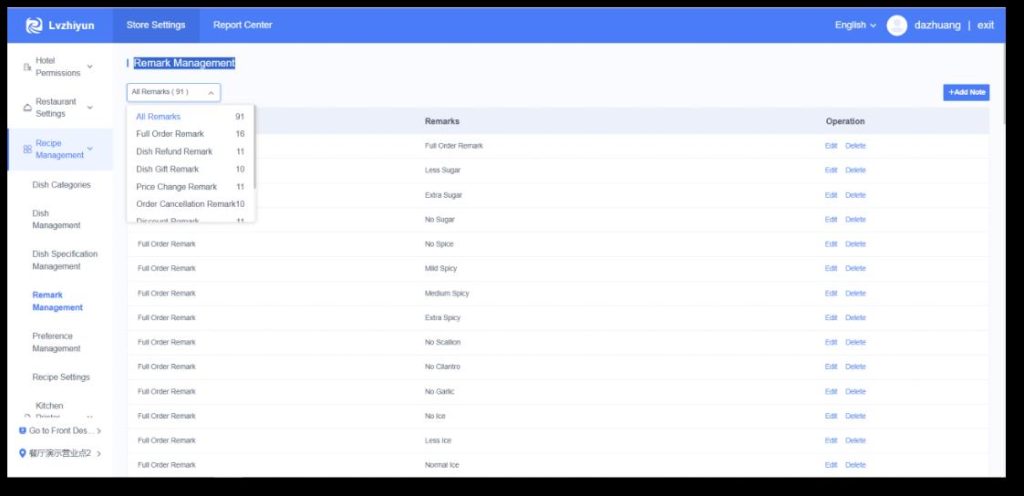
d、备注管理(Remark Management)
可对备注管理进行新增备注、编辑备注、删除备注操作,
默认有点菜备注、退菜备注、赠菜备注、改价备注、退单
备注、打折备注、菜品备注、撤销支付 8 个备注类型,
每个备注类型有一个默认备注内容,对应收银端点菜、退
菜、赠菜、改价、退单、打折、菜品操作、撤销支付的备
注。
Operations such as adding, editing, and deleting
remarks can be performed in the remark
management. There are 8 default remark types:
ordering remarks, dish return remarks,
complimentary dish remarks, price modification
remarks, order cancellation remarks, discount
remarks, dish remarks, and payment reversal
remarks. Each remark type has a default remark
content, corresponding to the remarks for
operations such as ordering, returning dishes,
giving complimentary dishes, modifying prices,
canceling orders, offering discounts, handling
dishes, and reversing payments at the cash register.
(二)、菜谱管理(Recipe Management)
e、偏好管理(Preference Management)
可创建偏好分组,自定义分组名称,并设置偏好内容,并批量选
择适用菜品内容,新增偏好,如:不加辣。
Preference groups can be created, with custom group
names and preference contents set. You can also batch
select applicable dishes and add new preferences, such as:
“No spicy”.
应用于对应的菜品,进行勾选。
Apply to the corresponding dishes and check them.
(二)、菜谱管理(Recipe Management)
f、菜谱设置(Recipe Settings)
进入后台,在门店设置-结账设置-前台营业中,将菜谱功能启用 启用后,各个应用
端菜品将根据菜谱中设置的菜品分类及菜谱进行展示。
Enter the backend, go to Store Settings – Checkout Settings – Front Desk
Operation, and enable the menu function. After enabling it, dishes on each
application terminal will be displayed according to the dish categories and
menus set in the menu.
(三)、厨打设置(Checkout Settings)
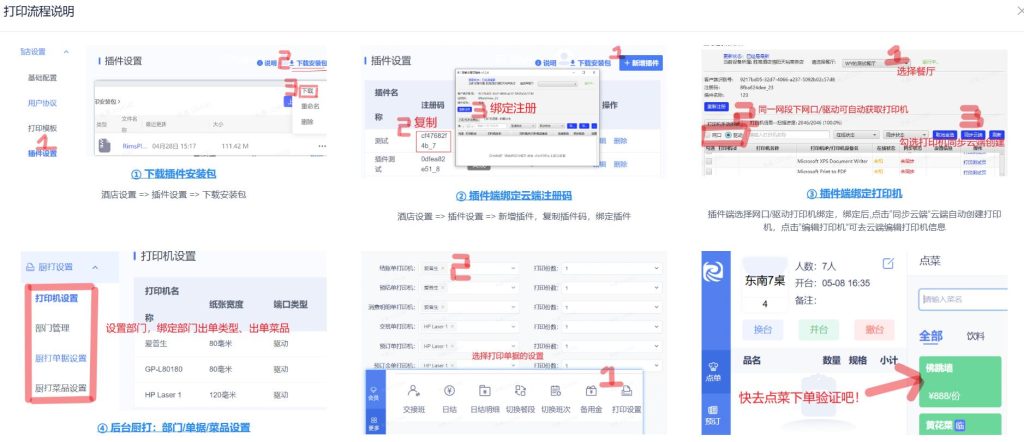
Hotel Settings => Plugin Settings =>
Download Installation Package
Hotel Settings => Plugin Settings =>
Add Plugin, copy the plugin code, bind
the plugin
The plug-in terminal selects a network
port/driver printer for binding.
The system automatically binds the default printer, department, kitchen printing documents, and all kitchen-printing dishes. You can
manually edit/delete them in “Kitchen Printing Settings”.
打印机配置,一般实施技术初始化会给安装配置好,餐厅后续无需太多的调整,以下是打印配置流程。
Printer configuration is generally installed and set up by technical personnel during the initial implementation, so restaurants do
not need to make many adjustments afterward. The following is the printer configuration process.
(四)、结账设置(Checkout Settings)
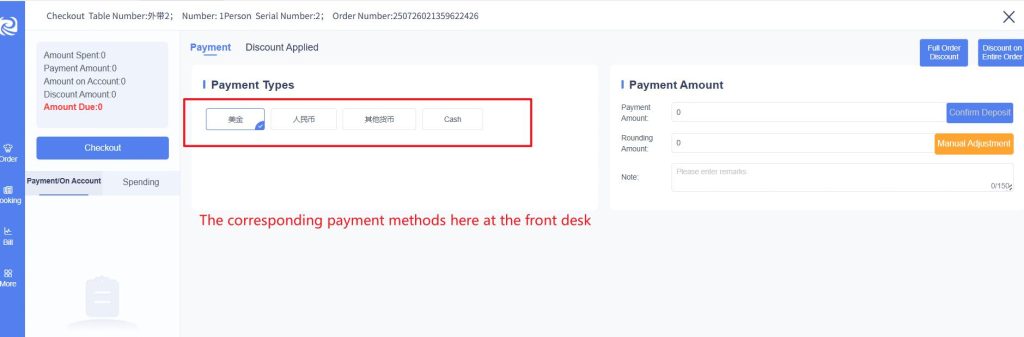
a、结算科目(Settlement Account)
可对结算科目进行新增结算科目、编辑结算科目、停用结算科目、启用结算科目、删除结算科目操作。
Operations such as adding, editing, deactivating, activating, and deleting settlement accounts can be performed for
settlement accounts.
(四)、结账设置(Checkout Settings)
b、消费科目(Expense Category)
可对消费科目进行新增消费科目、编辑消费科目、停用消费科目、启用消费科目、删除消费科目操作
注:默认有酒水收入、凉菜收入、热菜收入,默认的科目不可编辑与删除
Operations such as adding, editing, deactivating, activating, and deleting consumption accounts can be performed.
Note: There are default accounts including beverage income, cold dish income, and hot dish income. The default accounts
cannot be edited or deleted.
(四)、结账设置(Checkout Settings)
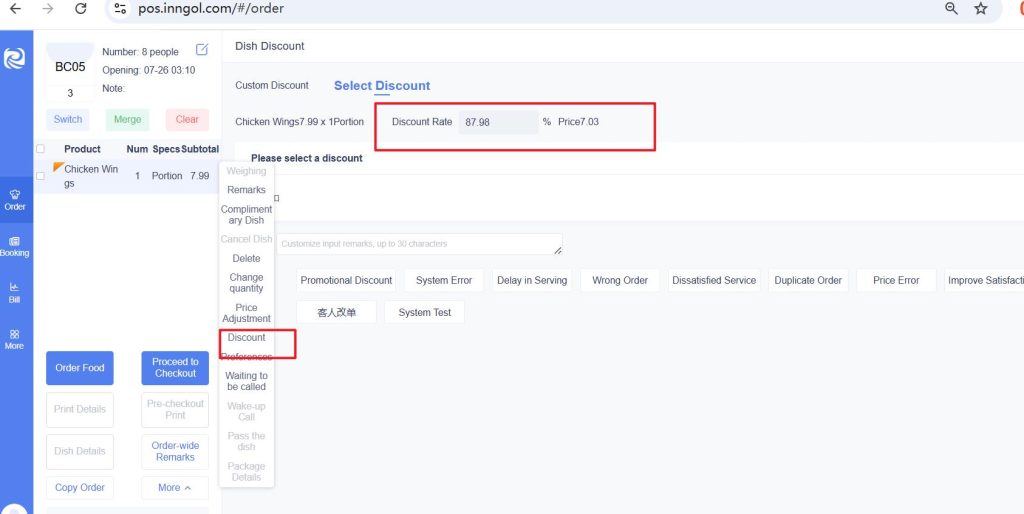
c、折扣设置(Discount Configuration)
可对折扣配置进行新增折扣、编辑折扣、停用折扣、启用折扣、删除折扣操作。
Operations such as adding, editing, deactivating, activating, and deleting discount configurations can be performed.
新增折扣成功后,在收银端对应菜品操作菜品打折,可选择此折扣。
After a discount is successfully added, this discount can be selected when operating on corresponding dishes to apply a
discount at the cash register.
(四)、结账设置(Checkout Settings)
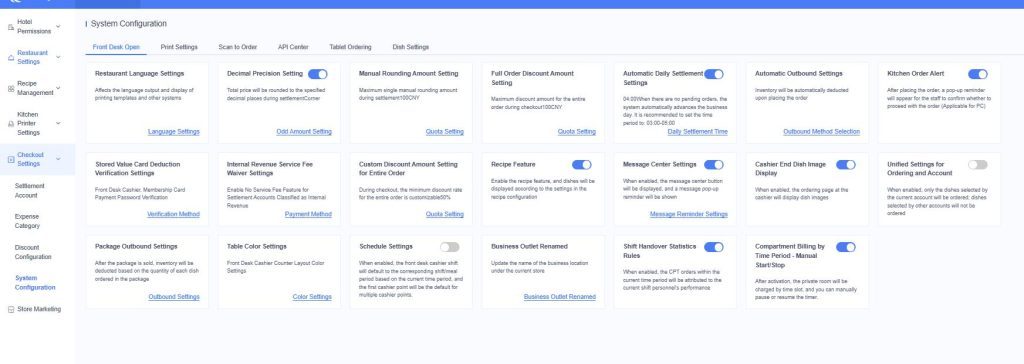
d、系统设置(System Configuration)
分为前台营业、打印设置、扫码点餐、接口中心、平板点餐、菜品设置等6 个业务块,主要对餐厅各项业务的基础配置和业务管理。
It is divided into 6 business modules: Front Desk Operation, Printing Settings, Scan-to-Order, Interface Center, Tablet
Ordering, and Dish Settings. It mainly handles the basic configuration and business management of various restaurant
operations.
(五)、门店营销(Store Marketing)
酒店可通过门店营销,针对不同的客人等级、餐段、菜品分类,设置不同的营销活动。列表排序按照添加活动倒叙排列,最新添加的在
最上方。
Hotels can set up different marketing activities through store marketing, targeting different guest tiers, meal periods, and
dish categories. The list is sorted in reverse chronological order of activity addition, with the most recently added ones at
the top.
(五)、门店营销(Store Marketing)
门店营销填写说明
- 活动名称:最多 30 个字符,可重复
- 活动类型:立减
- 参与对象:pms 客人等级+所有客人,单选;开台
人为对应等级时,才可使用此优惠活动日期:活动有
效时间
- 排除日期:周一至周日,复选,选中后,在勾选的
星期中不显示此优惠活动适用餐段:默认选中所有餐
段,可手动删除,非此餐段不显示此优惠活动 立减方
式:折扣
- 折扣率:默认 100%,输入框取值 0-100,支持小
数点后 2 位,超过保存后变为0
- 折扣菜品分类:取所有菜品分类,勾选后折扣率默
认取上方的全局折扣率,可手动修改
- 前台开台后,同时满足以下条件,才会显示门店营
销设置的活动:
① 当前时间在有效期内,且非排除日期
② 当前登录餐段在活动餐段内
③ 对应开台的客人等级、已点菜品或已下单菜品在优
惠活动内
Instructions for Filling in Store Marketing
- Activity Name: Maximum 30 characters, can be duplicated
- Activity Type: Instant deduction
- Target Participants: PMS guest tier + all guests, single selection; this discount
can only be used when the table opener is of the corresponding tier
- Activity Date: Valid time of the activity
- Excluded Dates: Monday to Sunday, multiple selections; after selection, this
discount will not be displayed on the checked weekdays
- Applicable Meal Periods: All meal periods are selected by default, can be
manually deleted; this discount will not be displayed outside the selected meal
periods
- Instant Deduction Method: Discount
- Discount Rate: 100% by default; the input box accepts values from 0 to 100,
supporting 2 decimal places; values exceeding the range will be converted to 0
after saving
- Discounted Dish Categories: All dish categories are available; after checking, the
discount rate defaults to the global discount rate above, which can be manually
modified
- After the front desk opens a table, the marketing activities set in store marketing
will be displayed only if the following conditions are met simultaneously:
① The current time is within the validity period and not in the excluded dates
② The currently logged-in meal period is within the activity’s applicable meal
periods
③ The guest tier of the corresponding table, ordered dishes, or already placed
dishes are within the scope of the discount activity
(六)、报表中心(Report Center)
以下分别简述各个报表的用途。按照列表顺序展开介绍,请在后台管理-》报表中心依次查看。
The following is a brief description of the purpose of each report. They are introduced in the order of the list.
Please check them in sequence in Backend Management -> Report Center.
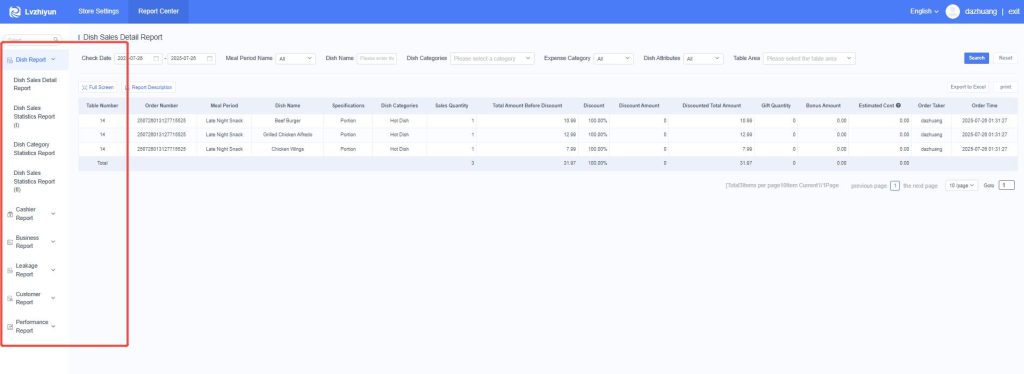
(六)、报表中心(Report Center)
菜品销售明细报表(Dish Sales Detail Report)
1. 按营业日统计“已下单”菜品销售明细,其中套餐明细菜不再单独统计
Statistics on the sales details of “ordered” dishes by business day, where the detailed dishes in set meals are no
longer counted separately.
2. 预估成本为系统管理-菜品管理定义的大概成本价,不作为财务依据,仅供参考
The estimated cost is the approximate cost price defined in System Management – Dish Management. It is not
used as a financial basis and is for reference only.
3. 菜名,套餐菜品显示套餐名称;临时菜显示下单时的菜品名称
For dish names, set meal dishes display the set meal name; temporary dishes display the dish name at the time
of ordering.
4. 点单员,小程序扫码点餐显示“CPT
Order taker: “CPT” is displayed for order placement via mini-program scan code.
(六)、报表中心(Report Center)
菜品销售统计报表(一)(Dish Sales Statistics Report (I))
1. 按营业日统计“已下单”菜品销售汇总,其中套餐明细菜不再单独统计
Statistics on the sales summary of “ordered” dishes by business day, with detailed dishes in set meals no longer counted
separately.
2. 菜品名称与菜品规格相同时,按 1 条数据统计
When the dish name is the same as the dish specification, they are counted as one piece of data.
3. 预估成本为系统管理-菜品管理定义的大概成本价,不作为财务依据,仅供参考
The estimated cost is the approximate cost price defined in System Management – Dish Management. It is not used as a
financial basis and is for reference only.
4. 菜名,套餐菜品显示套餐名称;临时菜显示下单时的菜品名称
For dish names: set meal dishes display the set meal name; temporary dishes display the dish name at the time of ordering.
5. 预估利润=折后总金额-预估成本
Estimated profit = total amount after discount – estimated cost
6. 菜品排行:可输入所要查询的排行数据,进行菜品销量排行查询
Dish ranking: You can enter the ranking data you want to query to check the sales volume ranking of dishes.
(六)、报表中心(Report Center)
菜品销售统计报表(二)(Dish Sales Statistics Report (II))
1. 按营业日统计“已下单”菜品销售汇总,对于套餐菜,按套餐明细菜统计,其中套餐菜本身不再单独统计
Statistics on the sales summary of “ordered” dishes by business day. For set meals, statistics are based on the detailed dishes
in the set meal, and the set meal itself is no longer counted separately.
2. 菜品名称与菜品规格相同时,按 1 条数据统计
When the dish name is the same as the dish specification, they are counted as one piece of data.
3. 预估成本为系统管理-菜品管理定义的大概成本价,不作为财务依据,仅供参考
The estimated cost is the approximate cost price defined in System Management – Dish Management. It is not used as a
financial basis and is for reference only.
4. 菜名,临时菜显示下单时的菜品名称
For dish names, temporary dishes display the dish name at the time of ordering.
5. 预估利润=折后总金额-预估成本
Estimated profit = total amount after discount – estimated cost
(六)、报表中心(Report Center)
菜品分类统计报表(Dish Category Statistics Report)
1. 按营业日统计“已下单”菜品,按菜品分类统计菜品销售情况,其中套餐明细菜不再单独统计
Statistics on “ordered” dishes by business day, and statistics on dish sales by dish category. Detailed dishes in set meals are
no longer counted separately.
2. 预估成本为系统管理-菜品管理定义的大概成本价,不作为财务依据,仅供参考
The estimated cost is the approximate cost price defined in System Management – Dish Management. It is not used as a
financial basis and is for reference only.
3. 销售数量,指累计销售数量,含赠送数量。例如:辣椒炒肉,销售数量4 份,其中3份按正价销售,1 份赠送
Sales quantity refers to the cumulative sales quantity, including the number of 赠送 (complimentary items). For example:
Sautéed Pork with Chili, the sales quantity is 4 portions, of which 3 portions are sold at the regular price and 1 portion is
complimentary.
4. 预估利润=折后总金额-预估成本
Estimated profit = total amount after discount – estimated cost
5. 占比=销售数量/总数量
Proportion = sales quantity / total quantity
(六)、报表中心(Report Center)
订单结账明细报表
1. 按开台营业日期查询统计已结订单消费与支付情况,含已结与临
时挂账订单
2. 查询时间限半年内
3. 菜品消费,即折前总金额=折前单价*销售数量,当前订单已下单
且未退菜品的折前总金额,含赠送菜
4. 赠送,当前订单已下单的赠菜折前总金额
5. 折扣,含会员优惠(会员价)、菜品折扣(打折)、全单优惠、全单减
免
6. 应收=菜品消费+服务费-赠送-折扣-系统优惠
7. 小程序在线支付,指扫码点餐在线付款
8. 其他,所有自定义支付方式
Order Checkout Details Report
1. Query and count the consumption and payment status of settled
orders by the opening business date, including settled orders and
temporarily suspended orders.
2. The query time is limited to within half a year.
3. Dish consumption, i.e., total pre-discount amount = pre-discount unit
price * sales quantity, which refers to the total pre-discount amount of
dishes that have been ordered and not returned in the current order,
including complimentary dishes.
4. Complimentary refers to the total pre-discount amount of
complimentary dishes ordered in the current order.
5. Discount includes membership benefits (member price), dish
discounts (price reduction), full-order discounts, and full-order
deductions.
6. Receivable = dish consumption + service fee – complimentary –
discount – system benefits.
7. Mini-program online payment refers to online payment for orders
placed by scanning codes.
8. Others include all custom payment methods
(六)、报表中心(Report Center)
前台收银明细报表(Front Desk Cashier Detailed Repor)
1. 按营业日统计所有前台收银情况,含结账收银、预订金、会员卡费收款、临时挂
账结算收款
Statistics on all front desk cashier situations by business day, including
checkout collections, reservation deposits, membership card fee collections,
and temporary account settlement collections.
2. 查询时间限半年内
The query time is limited to within half a year.
(六)、报表中心(Report Center)
前台收银汇总报表(Front Desk Cashier Summary Report)
1. 按营业日统计所有前台收银情况,按支付方式分类统计,含结账收银、预订金、
会员卡费收款、临时挂账结算收款
Statistics on all front desk cashier situations by business day, categorized by
payment method, including checkout collections, reservation deposits,
membership card fee collections, and temporary account settlement
collections.
2. 查询时间限半年内。
The query time is limited to within half a year.
(六)、报表中心(Report Center)
营业日报表
1. 按营业日,体现不同餐段的经营情况
2. 同一订单发生的营业收入与收款,账务时间按发生营业日统计,账务餐段归属统
一与订单开台发生的餐段统计
3. 系统优惠,指本营业日根据零头精度设置规则,系统自动优惠的金额
4. 菜品消费,指本营业日已下单菜品折前总金额,含赠菜
5. 服务费,指本营业日已结算服务费合计
6. 赠送,指本营业日已下单赠送菜品折前总金额
7. 折扣,指本营业日已下单菜品,参与会员优惠(会员价)、菜品折扣(打折)、全单优
惠、全单减免的折扣金额
8. 系统优惠,指本营业日根据零头精度设置规则,系统自动优惠的金额
9. 其他(支付方式),指本营业日所有现金、银行卡结算科目分类自定义支付方式合计
10.内部收入,指本营业日内部收入结算科目分类自定义支付方式合计
11.收预订金,指本营业日收预订金合计
12.预订金转收款,指本营业日预订开台,预订金转出合计
13.会员储值消费,指本营业日会员来店使用储值卡支付合计,与支付方式中储值卡
一致14.消费单数,订单数(餐桌使用次数)
15.消费人数,指本营业日到店消费总人数
16.单均消费(折后)=营业收入合计 A/消费单数 E1
17.人均消费(折后)=营业收入合计 A/消费人数 E2
18.报表数据穿透,目前按照菜品消费、服务费、赠送、折扣、系统优惠、支付方式
等的数据穿透,前往指定明细表
(六)、报表中心(Report Center)
Daily Business Report
1. Reflect the operating conditions of different meal periods by business day.
2. For the operating income and receipts generated by the same order, the
accounting time is counted according to the business day when they occur,
and the accounting meal period is uniformly counted according to the meal
period when the order is opened.
3. System discount refers to the amount automatically discounted by the
system according to the setting rules of the odd precision on the current
business day.
4. Dish consumption refers to the total pre-discount amount of dishes
ordered on the current business day, including complimentary dishes.
5. Service fee refers to the total amount of settled service fees on the current
business day.
6. Complimentary refers to the total pre-discount amount of complimentary
dishes ordered on the current business day.
7. Discount refers to the discount amount of dishes ordered on the current
business day that are involved in membership benefits (member price), dish
discounts (price reduction), full-order discounts, and full-order deductions.
8. System discount refers to the amount automatically discounted by the
system according to the setting rules of the odd precision on the current
business day.
9. Others (payment methods) refer to the total of all custom payment
methods classified by cash and bank card settlement accounts on the current
business day.
10. Internal income refers to the total of custom payment methods classified
by internal income settlement accounts on the current business day.
(六)、报表中心(Report Center)
11. Reservation deposit received refers to the total reservation deposit
received on the current business day.
12. Reservation deposit transferred to receipt refers to the total transfer-out
of reservation deposit for reservation table opening on the current business
day.
13. Member stored-value consumption refers to the total amount paid by
members using stored-value cards when coming to the store on the current
business day, which is consistent with the stored-value card in the payment
methods.
14. Number of consumption orders: the number of orders (number of table
usages).
15. Number of consumers refers to the total number of people who dined in
the store on the current business day.
16. Average consumption per order (after discount) = total operating income
A / number of consumption orders E1.
17. Average consumption per person (after discount) = total operating
income A / number of consumers E2.
18. Report data drill-through: currently, data drill-through is carried out
according to dish consumption, service fee, complimentary, discount, system
discount, payment methods, etc., to go to the specified detailed table.
(六)、报表中心(Report Center)
综合日报表(Comprehensive Daily Report)
1. 按营业日统计不同餐段的经营情况
2. 消费合计,含菜品消费与服务费
3. 优惠合计,含赠送、会员优惠(会员价)、菜品折扣(打折)、全单优惠、
全单减免、系统优惠
4. 应收合计,即营业收入=消费合计-优惠合计
5. 总桌台,当天已启用桌台数
6. 消费单数,指订单数(餐桌使用次数)
7. 消费人数,指本营业日到店消费总人数
8. 单均消费(折后)=应收合计/消费单数
9. 人均消费(折后)=应收合计/消费人数
10. 开台率=消费单数/总桌台
11. 翻台率=(消费单数-总桌台)/总桌台,当消费单数<=总桌台时,翻
台率为0
12. 上座率=消费人数/总座位数
Comprehensive Daily Report
1. Statistics on the operating conditions of different meal periods
by business day.
2. Total consumption, including dish consumption and service fees.
3. Total discounts, including complimentary items, membership
benefits (member prices), dish discounts (price reductions), full –
order discounts, full – order deductions, and system discounts.
4. Total receivables, that is, operating income = total consumption
– total discounts.
5. Total tables, the number of tables that have been used on the
day.
6. Number of consumption orders, referring to the number of
orders (the number of times the tables are used).
7. Number of consumers, referring to the total number of people
who dined in the store on the current business day.
8. Average consumption per order (after discount) = total
receivables / number of consumption orders.
9. Average consumption per person (after discount) = total
receivables / number of consumers.
10. Table opening rate = number of consumption orders / total
tables.
11. Table turnover rate = (number of consumption orders – total
tables) / total tables. When the number of consumption orders is
less than or equal to the total tables, the table turnover rate is 0.
12. Seat occupancy rate = number of consumers / total number of
seats.
(六)、报表中心(Report Center)
桌台营业统计(按区域)
1. 按营业日统计各区域已结订单消费情况,含已结与临时挂账订单
2. 外带点餐,统一计入“外带”
3. 消费合计,含菜品消费与服务费
4. 优惠合计,含赠送、会员优惠(会员价)、菜品折扣(打折)、全单优惠、
全单减免、系统优惠
5. 应收合计,即营业收入=消费合计-优惠合计
6. 消费单数,指订单数(餐桌使用次数)
7. 消费人数,指到店消费总人数
8. 单均消费(折后)=应收合计/消费单数
9. 人均消费(折后)=应收合计/消费人数
Table Sales Statistics (By Area)
1. Statistics on the consumption situation of settled orders in each
area by business day, including settled orders and temporarily
suspended orders.
2. Takeaway orders are uniformly included in “Takeaway”.
3. Total consumption, including dish consumption and service fees.
4. Total discounts, including complimentary items, membership
benefits (member prices), dish discounts (price reductions), full-
order discounts, full-order deductions, and system discounts.
5. Total receivables, i.e., operating income = total consumption –
total discounts.
6. Number of consumption orders refers to the number of orders
(the number of times tables are used).
7. Number of consumers refers to the total number of people who
dined in the store.
8. Average consumption per order (after discount) = total
receivables / number of consumption orders.
9. Average consumption per person (after discount) = total
receivables / number of consumers.
(六)、报表中心(Report Center)
菜品消费统计报表(按消费科目)
1. 按营业日统计“已下单”菜品,按菜品分类所属消费科
目分类汇总,其中套餐明细菜不再单独统计
2. 消费科目,定义路径:结账设置–消费科目;绑定关系:
菜谱管理–菜品分类
3. 消费类型,含餐食、酒水、服务费、其他消费
Dish Consumption Statistics Report (By Consumption Item)
1. Statistics on “ordered” dishes by business day, summarized by
the consumption account to which the dish category belongs.
Detailed dishes in set meals are no longer counted separately.
2. Consumption account: Definition path – Checkout Settings –
Consumption Accounts; Binding relationship – Menu Management
– Dish Categories.
3. Consumption types include meals, beverages, service fees, and
other consumption.
(六)、报表中心(Report Center)
赠菜报表(Complimentary Dish Report)
1. 按营业日统计“已下单”的赠菜明细,数量,赠菜数量
Statistics on the details and quantities of complimentary dishes that have been “ordered” by business
day, including the quantity of complimentary dishes.
2. “已退”赠菜不统计
“Returned” complimentary dishes are not counted.
3. 临时菜显示下单时的菜品名称
Temporary dishes display the dish name at the time of ordering.
4. 合计金额,即折前总金额=折前单价*赠菜数量
Total amount, i.e., total pre-discount amount = pre-discount unit price * quantity of complimentary
dishes.
(六)、报表中心(Report Center)
退菜报表(Refunded Dishes Report)
1. 按营业日统计“已下单”的退菜明细,数量,退菜数量
Statistics on the details and quantities of returned dishes that have been “ordered” by business day,
including the quantity of returned dishes.
2. 临时菜显示下单时的菜品名称
Temporary dishes display the dish name at the time of ordering.
3. 合计金额,即折前总金额=折前单价*退菜数量
Total amount, i.e., total pre-discount amount = pre-discount unit price * quantity of returned dishes.
(六)、报表中心(Report Center)
临时挂账未结报表(Temporary Unsettled Account Report)
按营业日实时统计“未结算”的临时挂账订单,已结算临时挂账不再呈现
Real-time statistics on “unsettled” temporarily suspended orders by business day; settled temporarily
suspended orders will no longer be displayed.
(六)、报表中心(Report Center)
改价打折记录表(Price Adjustment and Discount Record)
1. 按营业日查询菜品参与折扣的情况
Inquire about the situation of dishes participating in discounts by business day.
2. 折扣类型,含菜品改价、菜品打折、菜品赠送、全单优惠、全单减免、会员价
Discount types include dish price adjustment, dish discount, dish donation, full-order discount, full-
order reduction, and member price.(六)、报表中心(Report Center)
挂账报表(Chargeback Report)
按营业日统计挂账明细,含房间挂账、哑房挂账、临时挂账
Statistics on the details of account 挂账 (deferred payment) by business day, including room deferred
payment, dummy room deferred payment, and temporary deferred payment.
(六)、报表中心(Report Center)
会员注册报表(Member Registration Report)
按自然日统计会员注册信息。
Statistics on member registration information by calendar day
(六)、报表中心(Report Center)
销售员业绩报表(Sales Performance Report)
1. 按营业日统计已结订单消费情况,含已结与临时挂账订单
Statistics on the consumption situation of settled orders by business day, including settled orders and
temporarily suspended orders.
2. 未选择销售员的订单默认不展示
Orders without a selected salesperson will not be displayed by default.
3. 消费合计,含菜品消费与服务费
Total consumption, including dish consumption and service fees.
4. 优惠合计,含赠送、会员优惠(会员价)、菜品折扣(打折)、全单优惠、全单减免、系统优惠
Total discounts, including complimentary items, membership benefits (member prices), dish discounts
(price reductions), full-order discounts, full-order deductions, and system discounts.
5. 应收合计,即营业收入=消费合计-优惠合计
Total receivables, i.e., operating income = total consumption – total discounts.
(六)、报表中心(Report Center)
点单员业绩报表
1. 按营业日期查询点单员(下单人)菜品业绩销售情况,
其中套餐明细菜不再单独统计
2. 预估成本为系统管理-菜品管理定义的大概成本价,
不作为财务依据,仅供参考
3. 点单数量,指累计销售数量,含赠送数量。例如:辣
椒炒肉,2 份,点单数量=2,点单次数=1
4. 点单次数,指已下单菜品记录数,若原菜全部退完不
计算次数
5. 折扣金额=折前总金额-折后总金额,含会员优惠(会
员价)、菜品折扣(打折)、全单优惠、全单减免
6. 预估利润=点单金额-折扣金额-赠送金额-预估成本
Order Taker Performance Report
1. Inquire about the sales performance of dishes by order takers
(those who placed the orders) based on the business date.
Detailed dishes in set meals are no longer counted separately.
2. The estimated cost is the approximate cost price defined in
System Management – Dish Management. It is not used as a
financial basis and is for reference only.
3. Order quantity refers to the cumulative sales quantity,
including the number of complimentary items. For example:
Sautéed Pork with Chili, 2 portions, order quantity = 2, order
times = 1.
4. Order times refer to the number of recorded dishes that have
been ordered. If all original dishes are returned, the times will
not be counted.
5. Discount amount = total pre-discount amount – total post-
discount amount, including membership benefits (member price),
dish discounts (price reduction), full-order discounts, and full-
order deductions.
6. Estimated profit = order amount – discount amount –
complimentary amount – estimated cost.
(七)、酒店管理(Order dishes)
a、销售员设置(Salesperson)
针对酒店销售人员的配置,需要先配置销售部门,再新增销售员,主要用于开台选择销售员和预订单销售员选择。
For the configuration of hotel sales personnel, it is necessary to first configure the sales department and then add new
salespersons. This is mainly used for selecting salespersons when opening a table and selecting salespersons for advance
orders.
(七)、酒店管理(Order dishes)
b、客户管理(Customer Management)
主要用于临时挂账客户的使用。
It is mainly used for customers with temporary deferred payments.
(七)、酒店管理(Order dishes)
c、来源渠道(Source Channel)
主要标识订单从哪些渠道过来。
平板点餐
Tablet Ordering
(一)、登录(Login)
进入平板点餐系统(https://pms.inngol.com/h5-project),输入账户、密码,点击登录。账号密码和电脑端一致。
Enter the tablet ordering system(https://pms.inngol.com/h5-project), input the account and password, and click Login. The
account and password are the same as those on the computer terminal.
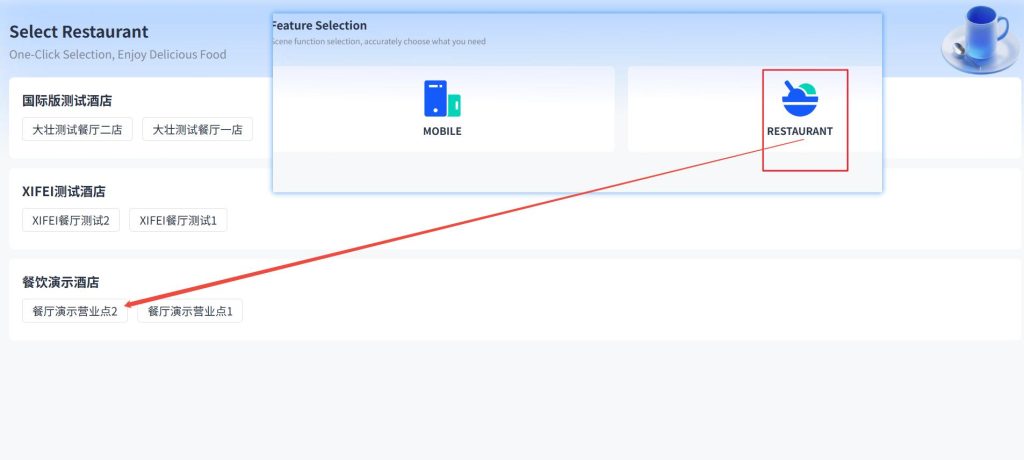
(二)、选择餐厅(Select a restaurant)
登陆后,可展示该酒店下用户所拥有的餐厅权限,选择所要进入的餐厅。
After logging in, the restaurant permissions owned by the user under the hotel can be displayed, and the restaurant to enter
can be selected.
(三)、点餐(Order dishes)
进入餐厅后,用户查看该餐厅下在当前餐段内所启用的菜单类别以及菜品。 若不同餐段内,菜品有所不同,可手动点击“刷新”按钮,进行手动刷新。
“+/-”符号来添加或者修改菜品数量,可选择规格备注要求。
After entering the restaurant, users can view the enabled menu categories and dishes for the current meal period in the restaurant.
If the dishes vary between different meal periods, users can manually click the “Refresh” button to refresh manually.
Use the “+/-” symbols to add or modify the quantity of dishes, and you can select specifications and add remarks as required.
(四)、下单(Order dishes)
当用户选择完菜品,可点击右上角“购物车”中,进入购物车
页面,进行菜品核对。
After the user has selected the dishes, they can click on the
“Shopping Cart” in the upper right corner to enter the
shopping cart page and check the dishes.
若用户对菜品有调整,可点击左上角“返回按钮”或右下角
“继续点菜”按钮返回点菜页面。
If the user needs to adjust the dishes, they can click the
“Back” button in the upper left corner or the “Continue
Ordering” button in the lower right corner to return to the
dish ordering page.
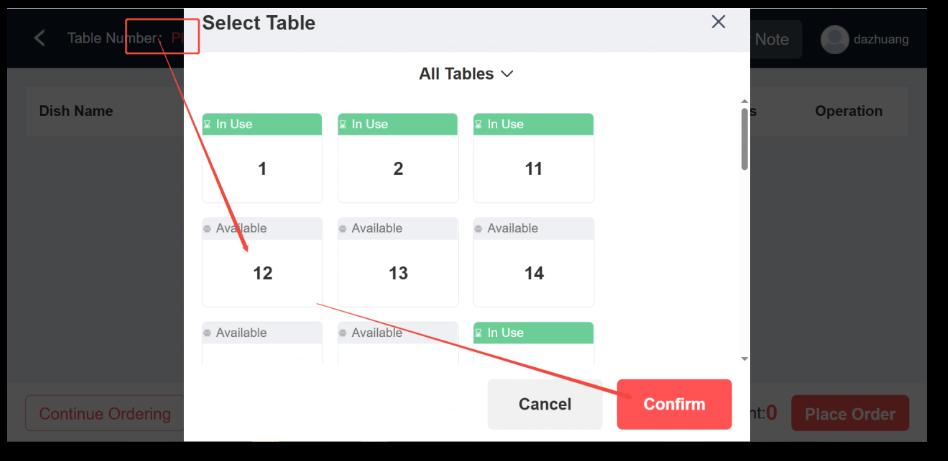
当客人确认菜品后,点击“桌台选择”,选择桌台,点击确定。
After the guest confirms the dishes, click “Table Selection”,
choose a table, and click confirm.
再点击人数,填写实际用餐的客人数,点击确定。
Then click on the number of people, fill in the actual number
of diners, and click confirm.
当客人确认菜品明细无误,桌台和人数都填写好后,点击右下
角发送下单按钮,进行下单操作。
Once the guest confirms that the dish details are correct,
and both the table and the number of people have been
filled in, click the “Send Order” button in the lower right
corner to place the order.